How to choose a background for your mockup showcase
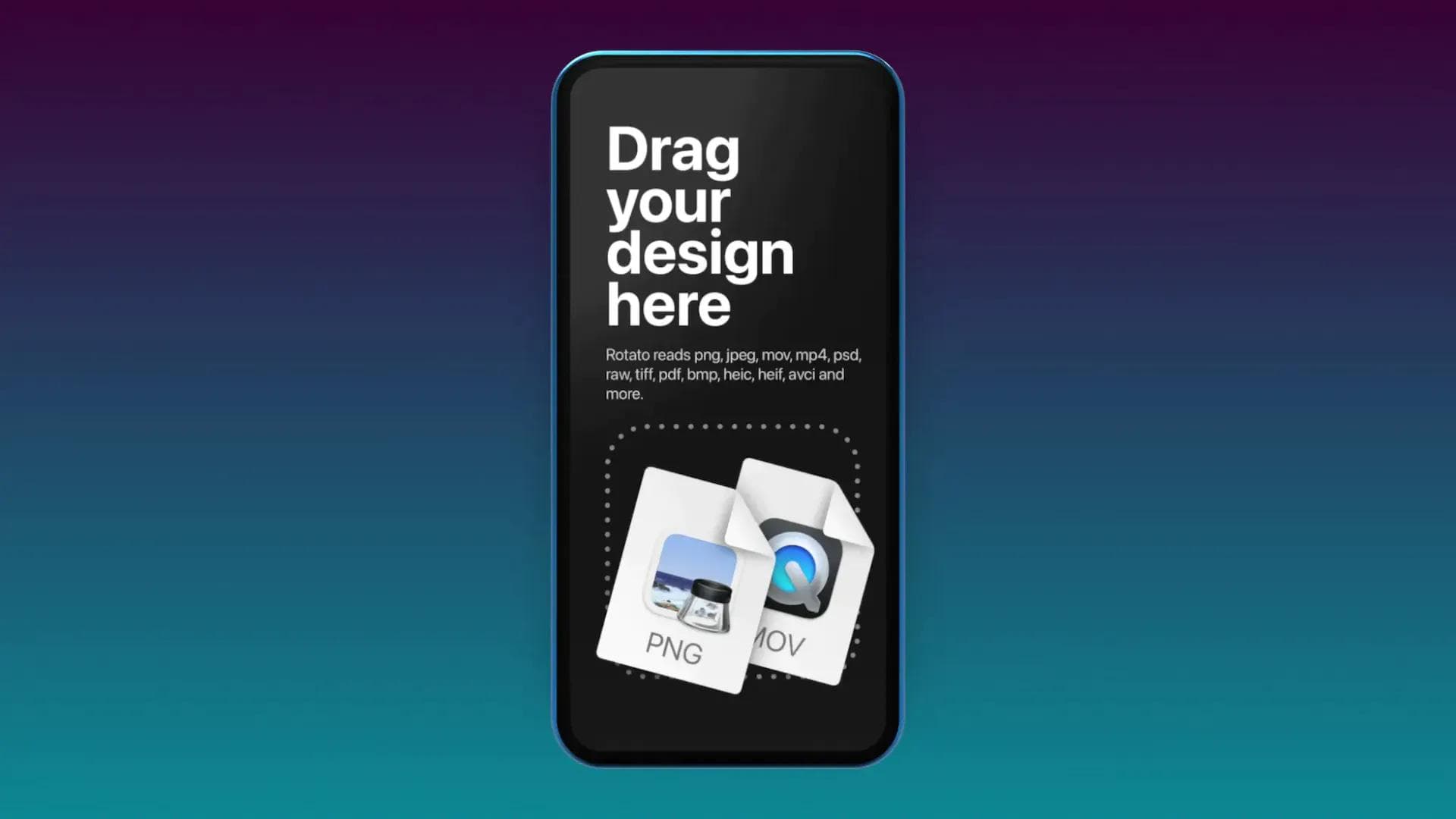
Backgrounds are great for setting the context of your mockup animation. For example, you can hint at the app’s personality and tone of voice or give the impression that the app is being used outdoors or on a coffee table.
But let me warn you right off the bat: it’s easy to add too much noise to your slick animation accidentally. If the background becomes too busy, it moves the viewer’s attention from the mockup to the background—and that’s rarely what you want.
So let’s take a look at a few different types of backgrounds that will inspire you for your next app showcase video.
Photo backgrounds
A flat photo can work well behind a mockup when the camera stays still. For example, you could show a table, a forest, or a blue sky. Once the camera moves, however, the device and the flat image can feel disconnected because the image does not move with the 3D scene.
If you want the image to surround the scene and move naturally with the camera, use an environment image instead. Do not drag the image onto the background. The current workflow is in the Environment section of the sidebar, as shown below.
But there are a few exceptions to this rule of thumb. One of them is a gradient background, so let’s look at that next.
Gradients
Here, I’ve dragged in a simple radial gradient in my brand’s green color, which looks pretty good. You can experiment with linear gradients to create a kind of atmospheric look. You can also give a very subtle gradient a shot, adding a hint of interestingness to the scene without shouting, “Hey! Here’s a gradient! I’m using a gradient!”
Okay, let’s move on to something slightly more advanced and accurate to Rotato’s 3D nature.
Environment images
Take a look at the video below and notice how the background moves along with the camera. The trick is an environment image: Rotato wraps the image around the scene so the camera, mockup, and lighting feel like they belong in the same space.
To add or change one in the current Rotato UI:
- Open Environment in the sidebar.
- Select Image from the environment menu.
- Click Choose… and select your image.
- Use the fit menu and the Blur, Sat, and Scale controls to tune the result.
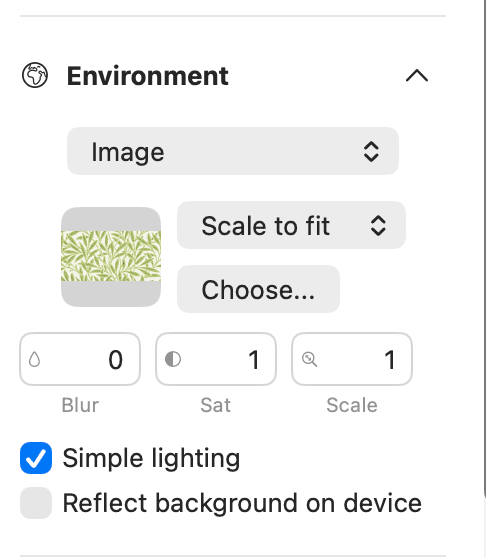
This is an important distinction: replace an environment image here—not by dragging an image onto the background and not in the Background sidebar section. Background controls affect the flat canvas behind the scene; Environment is where you choose the image that surrounds the 3D scene.
For the best result, use a wide image with a 2:1 aspect ratio—2000x1000 pixels, for example. Higher-resolution images usually hold up better as the camera moves.
One thing to note here is that Rotato will wrap the image in a globe-like shape and put you, the mockup, and the camera right in the center of it. So, as you might have guessed, that will create distortions at the north and south poles and how many pixels you give it. So, as a rule of thumb, go for big images here.
Let’s look at the example above, but this time as an environment image.
And another one with a repeated pattern from StockTextures.
The Environment panel also gives you control over lighting and reflections. Simple lighting keeps the setup straightforward, while Reflect background on device lets the background influence reflective device surfaces.
Next, let’s take a look at a small trick that will give you complete control over the reflections.
Matched environment background
We love the reflections in the glass, but we want to tone down that noisy background a bit. And when I say “a bit,” I mean “completely.” So we can now pick another background color, and Rotato will remember the reflection environment and use your new background.
In the video below, I went all in and used the color picker to get the same tone of green as is reflected on the device. This gives me an interesting effect where the phone mockup becomes extremely subtle, leaving only a hint of a device mockup while guiding the viewer’s eye towards the place with the real action: the app on the screen.
As you’ve seen, the possibilities are pretty much endless. Open Rotato, choose an image in Environment, and start experimenting!