Find and run commands with Cmd-K
Search for an action without browsing Rotato's menus.
 By Morten Just
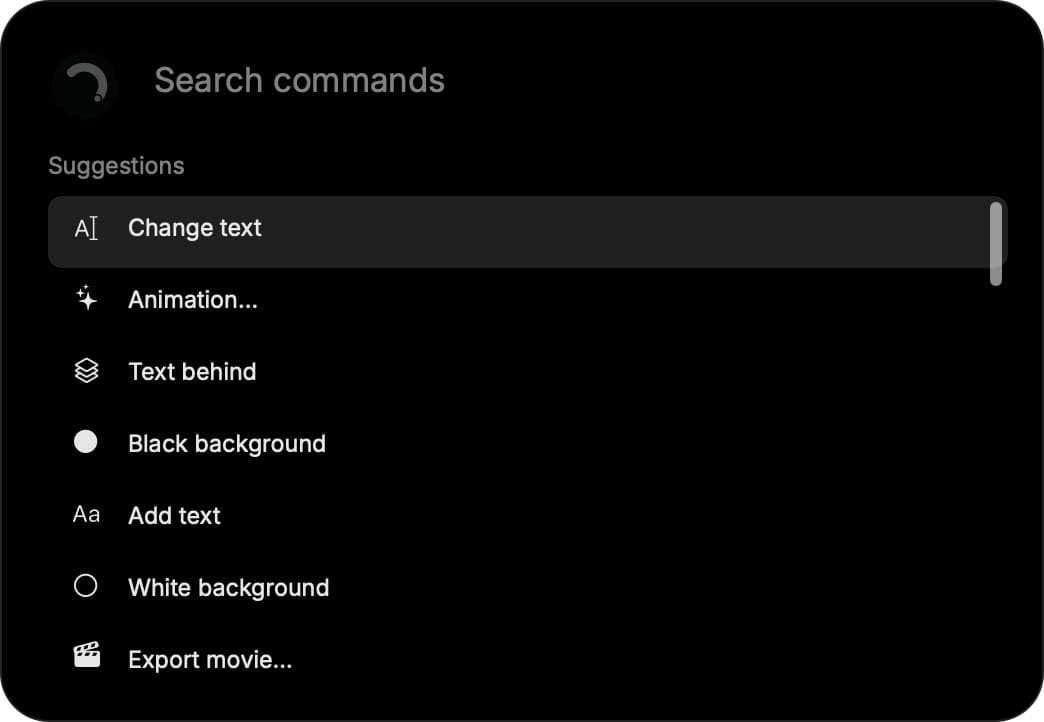
Press Cmd-K to open the command palette, or click the Search magnifying glass in the editor toolbar. Hover over Search to see the shortcut.
The command palette is a premium feature planned for Rotato 161. You need an activated license whose update access includes that release. If your free updates ended earlier, Cmd-K opens a renewal sheet with your purchase date, update expiry, and the palette's release date. The final release date will be set when 161 ships.
This guide describes the upcoming command palette. If Search is missing, your installed version does not include it yet.
Find an action
Type part of an action's name, use Up and Down to choose a result, then press Return. The first result is selected automatically. Press Escape to dismiss the palette.
You can search choices directly. For example, search iPhone to find device choices for a new project, or 4K to find export options. You do not need to open their parent menus first.
Some actions open a list of choices. Choose one and press Return. To go back, clear the search field and press Backspace. The logo changes to a chevron while you are inside a list.
Change the scene
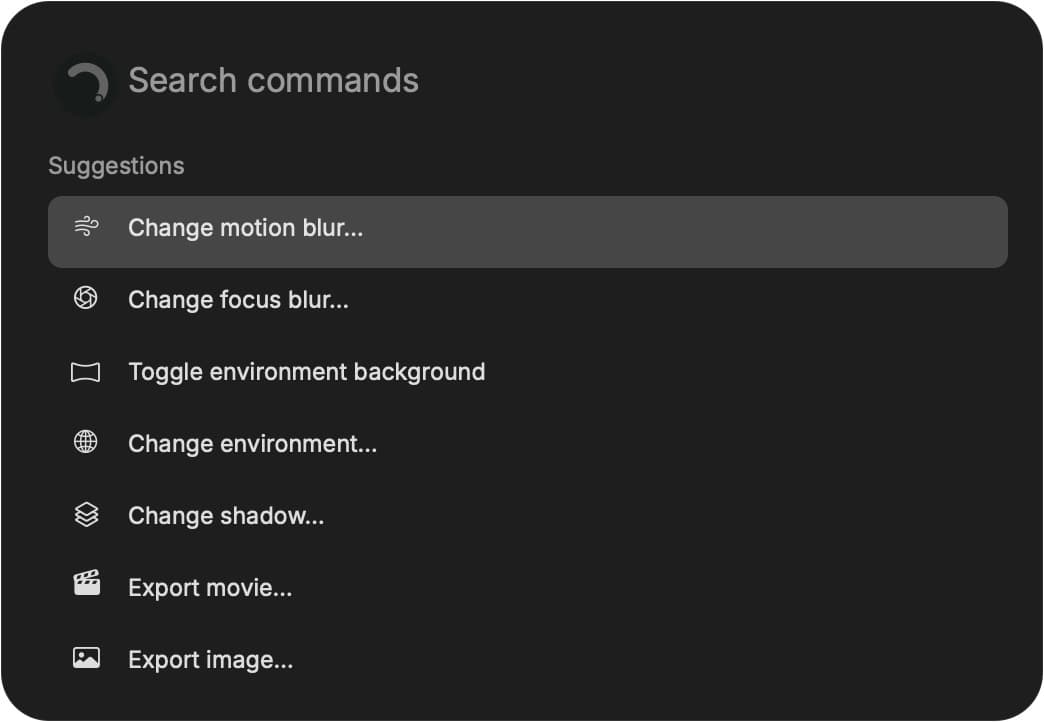
Search focus blur, motion blur, shadow, or environment to change the same settings shown in the sidebar. You can also toggle whether the environment appears as the background. Use Cmd-Z to undo an edit.
Add camera motion
Choose Add camera zoom, then Zoom in, hold, return for a three-second close-up. The camera moves toward the device, holds for one second, and returns to its starting pose. Zoom out moves the camera away instead.
For a specific part of the screen, choose Choose zoom position, then a position such as Top left, Top middle, or Bottom right. You can also search a position directly, such as zoom bottom right. Clear the search field and press Backspace, or click the back arrow, to return one level.
Rotate and zoom out adds a quarter-turn or half-turn reveal. Camera presets requested during existing motion follow that motion. The new preset's final endpoint becomes selected, and Cmd-Z removes the edit.
Work with your selection
The palette shows actions available in the current window. From the opening template picker, you can create or open a project, open Settings, or quit. Open a project to see editing and export actions.
Select a device before commands such as Replace screen media. The file picker accepts images and movies together.
Add text inserts a text layer immediately. To work on an existing layer, use Find text layer and choose its text. The palette then offers Change text, Animation, and Text behind for that layer.
Keep frequent actions near the top
The palette learns from commands you run. Frequent and recent actions move higher in suggestions, while search matches and actions for your selected text stay relevant. Opening a submenu or cancelling a file picker does not count as running its command.
Command usage stays on your Mac. Search terms and your project's text are not saved as ranking history.