Start from a device pose
Choose a useful starting orientation for a phone, laptop, or folding device.
 By Morten Just
Use the pose menu in the selected device's header to choose a starting position. If the menu is missing, update to an app version that includes device poses.
Choose a pose
- Select the device on the canvas or in Devices.
- Open the pose menu in its header.
- Choose a supported pose, such as Portrait, Landscape, or a laptop opening.
- Refine the position and scale for your composition.
Poses vary by device. A model without a supported hinge does not offer invented laptop openings.
Galaxy Z Flip8
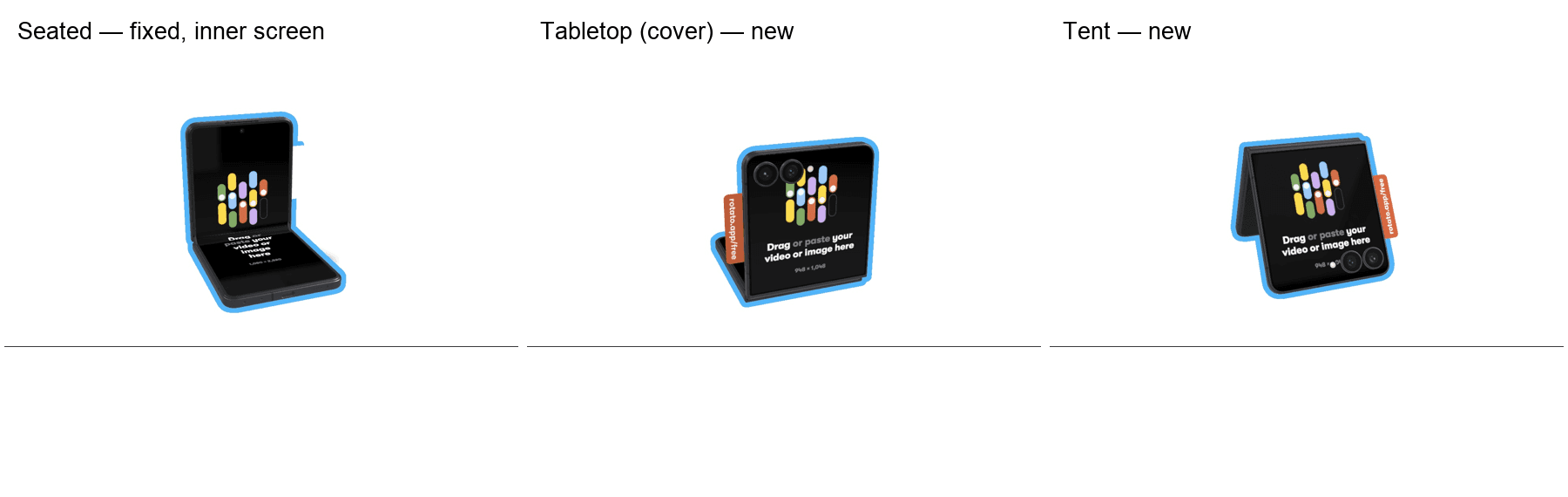
Galaxy Z Flip8 includes three presentations for a partly folded phone:
- Seated lays the base flat and presents the inner screen.
- Tabletop (cover) lays the base flat and faces the cover screen toward the camera.
- Tent rests the phone on both outer edges with the hinge raised.
The screen artwork turns with the chosen pose. If these choices are missing, update Rotato to a version that includes the Flip8 presets.
Refine the result
A pose sets the device presentation and, where relevant, its opening and screen orientation. The camera stays separate. You can continue editing after choosing a pose; custom rotation or fold edits can change the menu label to Custom.
Use poses with animation
Choose an animation edge before applying a pose when you want it to become an endpoint. If an interior pose would take the hinge outside its supported range, apply it at an edge instead.
Screen orientation is a whole-movie setting. Inspect the other screen clips after changing it.