HomeView scenes and templates
Make a standing or wall-mounted display mockup.
Start with a device
- Choose File → New to open Rotato's welcome window.
- Open Devices and search for HomeView.
- Open HomeView for the standing display, or HomeView (Wall Mounted) for the wall version. Download the model first if prompted.
- Drag your image or video onto the screen.
For the standing display, select the device and use the pose menu in its header to try Tilted. See device poses for editing an animated pose.
Start with a template
In the welcome window, open Templates → HomeView. Choose from Fan Reveal, Photo Clock, Media Turn, Tilt Tracking, Closing Hero, and HomeView Wall. Use the Using picker to choose the device. For the wall scene, choose HomeView (Wall Mounted).
Replace the screen artwork and preview the whole timeline before exporting. If a template asks for a newer Rotato version, update the app before opening it.
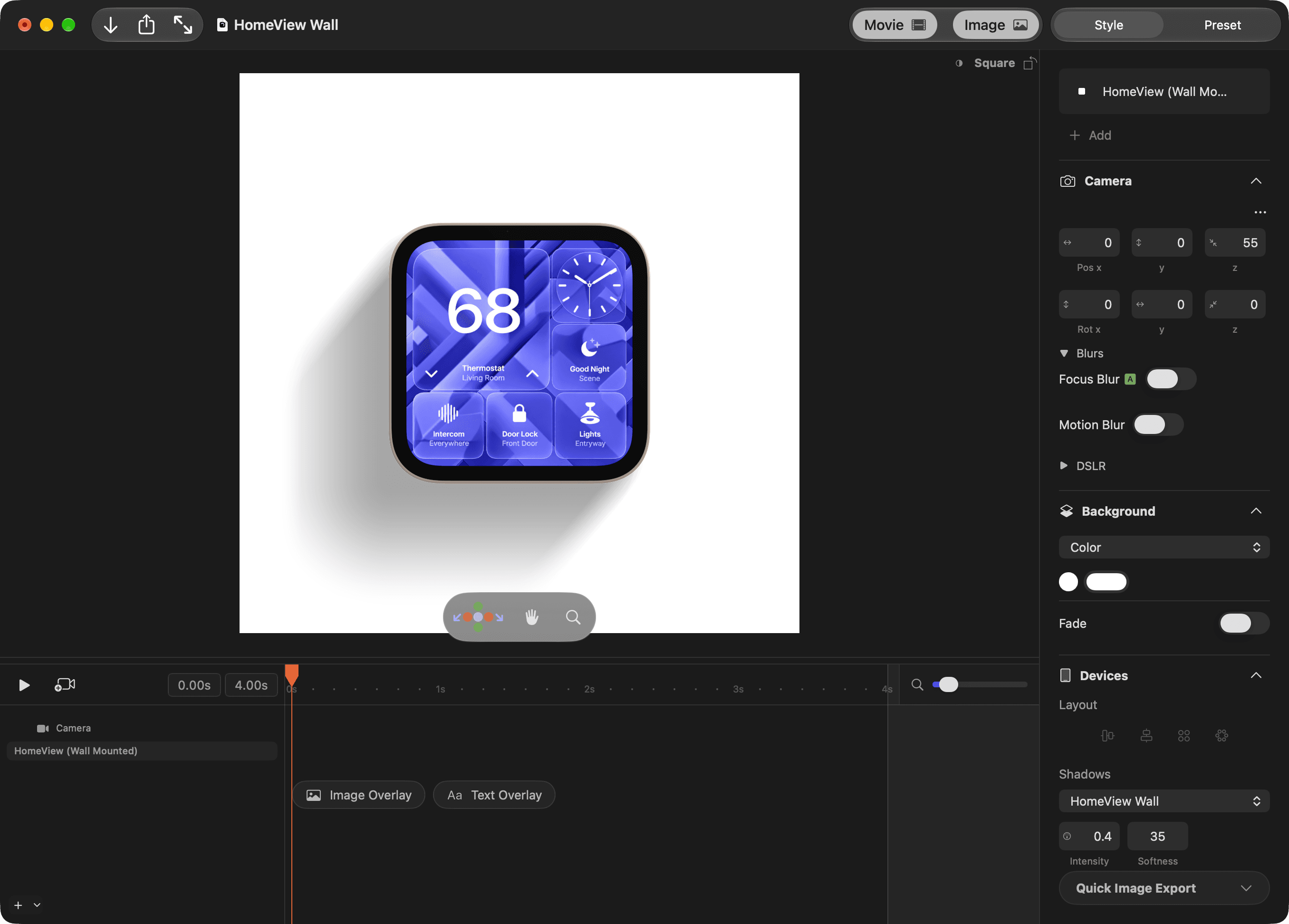
Adjust the wall shadow
Open Style → Devices → Shadows, then choose HomeView Wall. Adjust Intensity, Softness, and Fade distance to fit the scene. A fade distance of 0 turns distance fading off.

Rotato app screenshot. The example artwork is part of the wall template.
The fade works in the Realtime canvas and its image exports. Rendered View uses separate physical lighting. See custom shadows for more controls.
If a new device exports with a watermark, check your license and device access.