Animate a folding device
Control a fold separately from device movement and screen content.
 By Morten Just
Choose a folding model such as iPhone Duo to create an opening reveal.
Set up the screens
Select the device and choose a display in Screen. Add the artwork for that display, then repeat for its other display. Check each screen in the pose you plan to show.
Try an opening
Select the device, hover the separate rotation ring near the end of its fold axis, and drag. The ring highlights on hover and stops at the model’s fold limits. It stays clear of the device movement controls and leaves your camera angle unchanged. Drag sensitivity stays the same as you zoom in or out.
You can also set the opening in the inspector.
Animate the fold
- Set the device's initial opening and move the playhead to where the fold should begin.
- Use the device's timeline add menu to add fold rotation. Its group expands, and the new ending keyframe is revealed and selected.
- Adjust Rotation in the focused sidebar to set the final opening. Both endpoints initially keep the current angle, so adding the block alone does not create motion.
- Preview the fold. Select the block's body to adjust timing and easing, or click its starting diamond to change the initial opening.
In Manual mode, select an edge to edit its keyframe. With a fold animation already present and no edge selected, dragging previews the opening without changing the animation. Moving the playhead restores the animated pose.
The device's movement, fold, and screen contents use separate tracks. This lets you start the screen recording after the reveal or keep the hardware still while it opens.
Where available, use device poses as starting points. Their availability depends on the build and model.
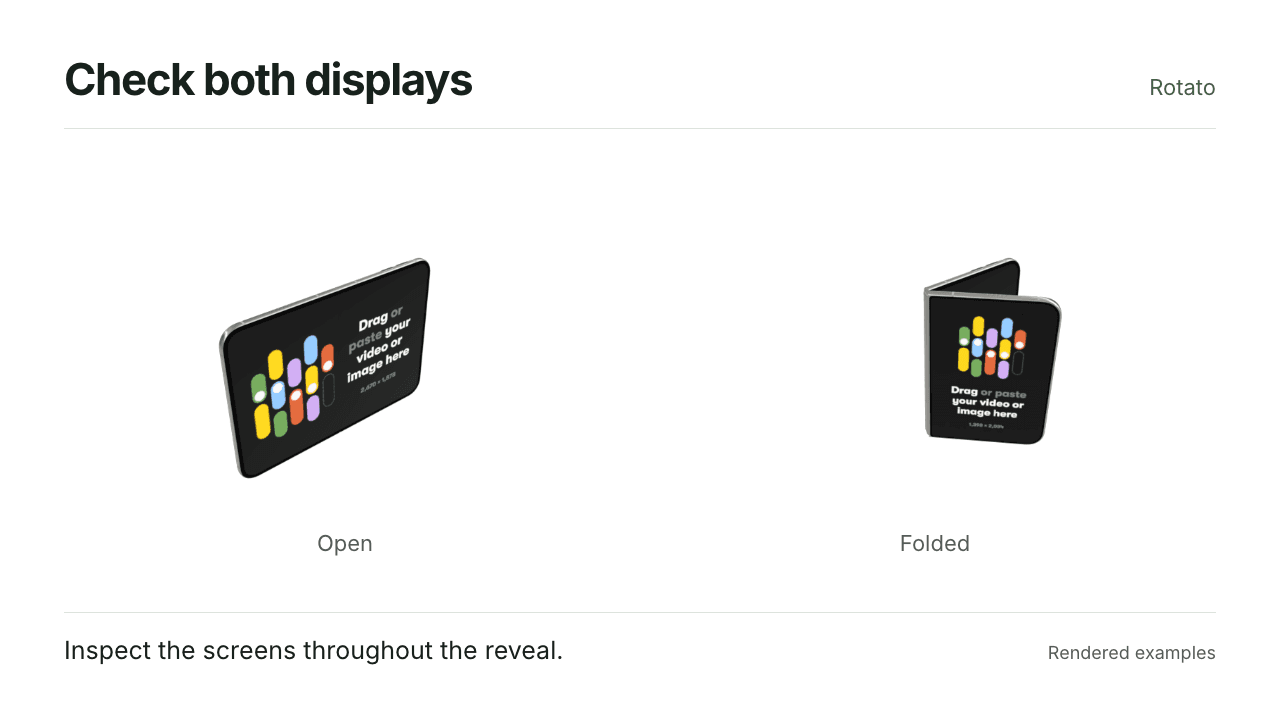
Rendered examples of the result.
Follow the hinge ring
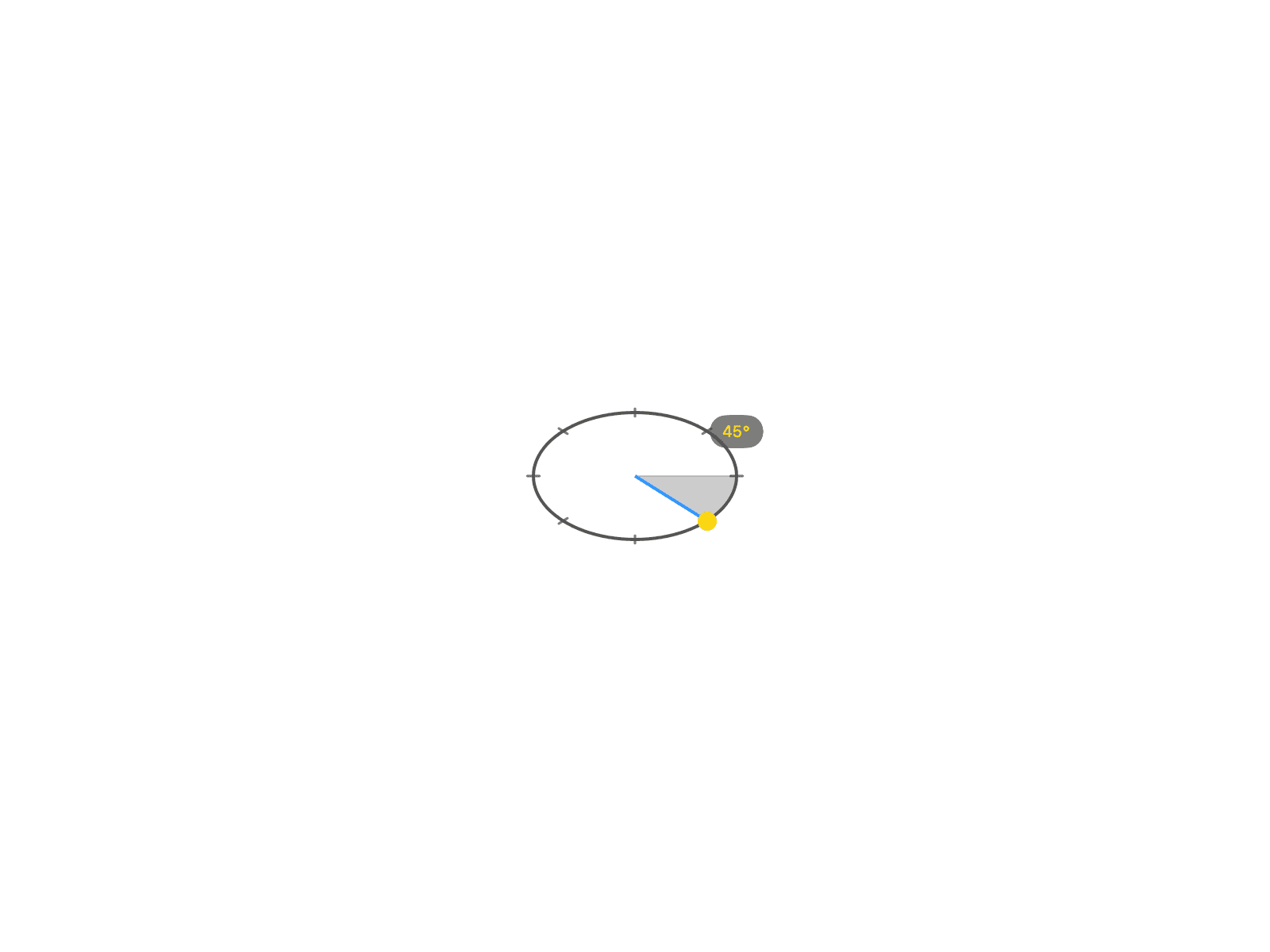
In builds with snapping, follow the visible ring with a circular pointer motion. The fixed degree label, shaded turn, and yellow marker show the accepted opening. Small rounded ticks mark reachable 45-degree targets. The ring stops at the model's physical limits.
See move and rotate a device with snapping for the shared ring controls and canvas alignment guides.