Move and rotate a device with snapping
Align a device to the canvas and rotate it to exact angles.
 By Morten Just
Select a device to show its movement arrows, center handle, and rotation rings. These controls move that device. Use Camera to change the view of the whole scene.
If your version does not show snap ticks or yellow alignment guides, it does not yet include snapping.
Align to the canvas
- Drag the round center handle to move the device across the canvas.
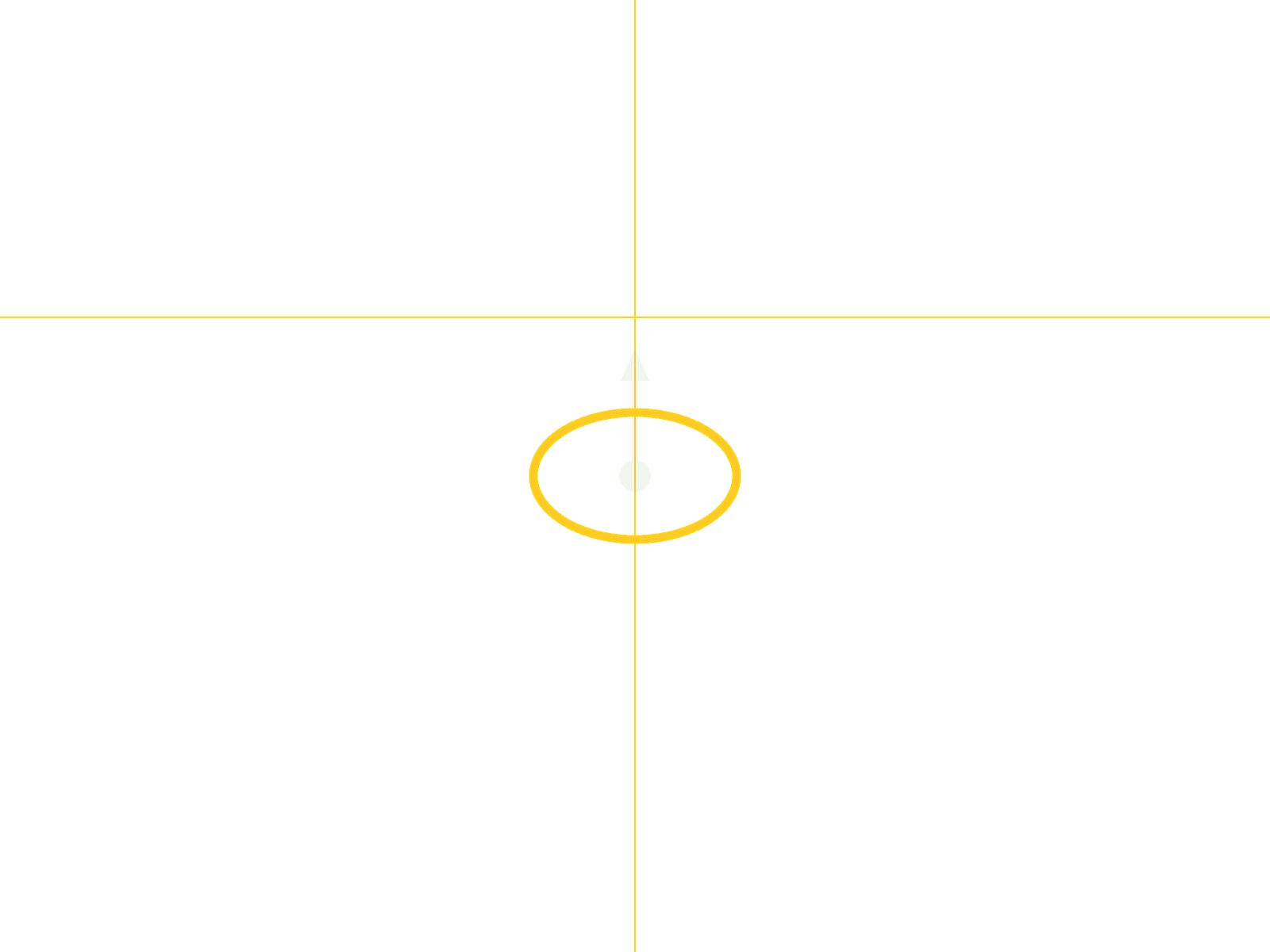
- Approach the canvas center or a one-third or two-thirds line. The device's visible center snaps to that line.
- A yellow guide shows the alignment while you drag. Move farther away to release it.
Drag an arrow to move along just that device axis. It can snap to a guide when the axis can reach it.
Rotate to an exact angle
- Grab a colored rotation ring.
- Follow its circle or tilted ellipse with your pointer. Keep circling to add more turns, or reverse to rotate back.
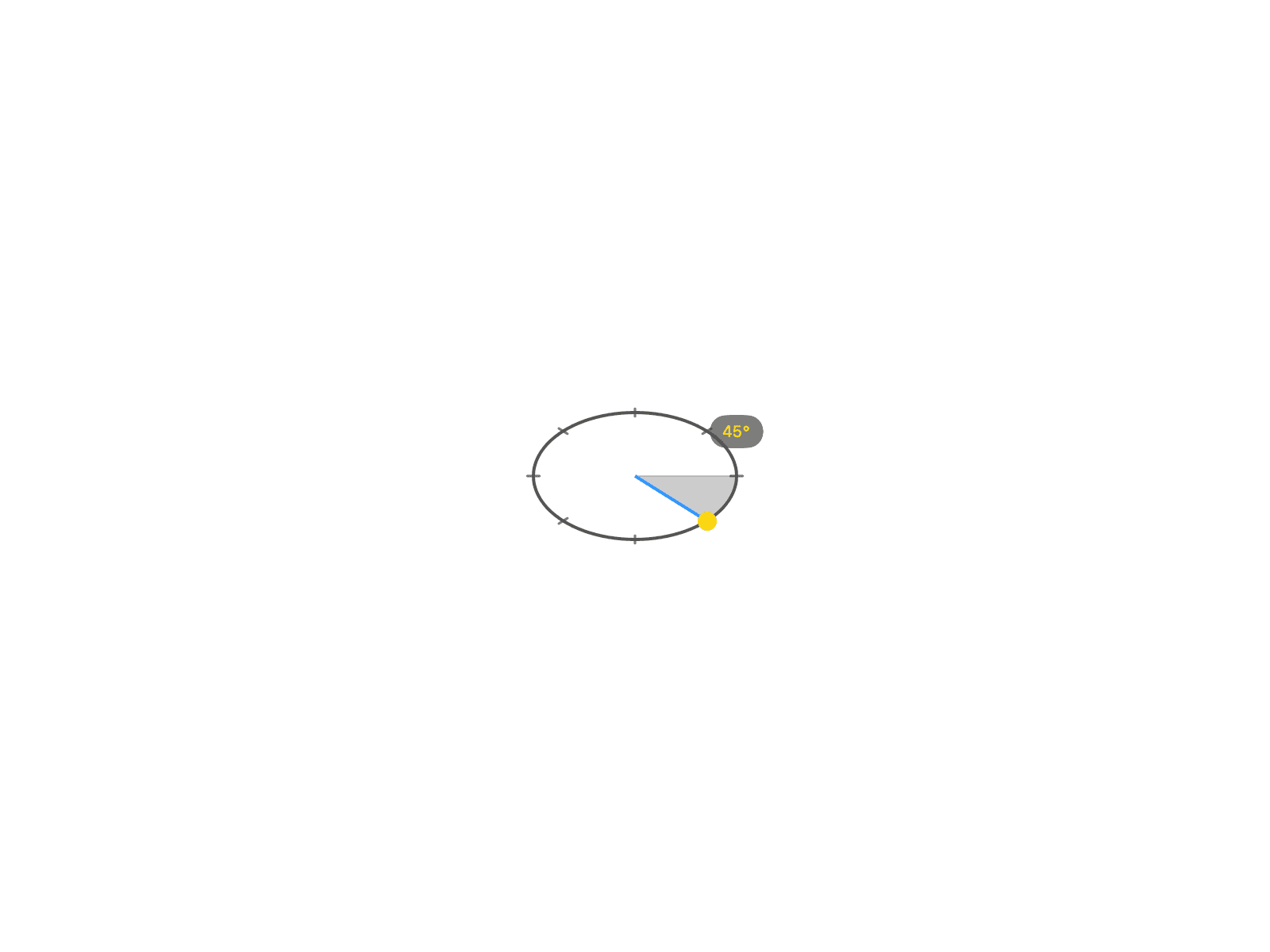
- Approach a tick to snap to a 45-degree increment, including 0, 90, and negative angles.
The yellow marker follows the accepted angle. The shaded area shows the turn, and the degree label stays beside the point where you started. A yellow degree value indicates a captured snap. The ring uses dark gray over a light background and white over a dark background.
Open, fold, or tilt a device
A supported laptop, folding device, or monitor has a separate ring near its hinge. Follow that ring in the same way. It stops at the model's physical limits and shows only reachable snap ticks.
See open and close the laptop or animate a folding device to animate the opening independently.
Edit an animation
Select the starting or ending diamond before dragging to change that keyframe. In Manual mode, dragging an animated device without a selected endpoint previews a pose. Scrubbing or playing returns to the saved animation.
Use Edit > Undo to reverse a completed drag. Use Position & Scale to enter exact device values.