Create videos with your AI agent
Describe a clip, review it in Rotato, and keep editing.
 By Morten Just
Connect an AI agent to Rotato to turn your app designs into clips. Describe the camera movement precisely, or ask the agent to choose a direction and make a first draft.
The Agent sidebar is available in Rotato 161 and later.
Connect your agent
- Open a project and choose Agent in the sidebar.
- Turn on Allow agent control. Rotato remembers this choice after restarting. You can also change it in Settings.
- Click Copy setup prompt, then paste it into your agent's conversation.
- Follow the agent's connection steps. Keep Rotato running while the agent works.
Your agent needs access to the Mac running Rotato. The connection uses MCP, the protocol agents use to call tools. Agent control requires Rotato Pro and uses your own AI subscription.
A green circle on the Agent tab indicates a connection. It does not open a conversation with the agent. Return to the conversation you connected, or use Copy setup prompt to start another one. The button remains available while connected.
Describe the result
You can start with a broad request:
Make a short social teaser for this app. Begin close to the activity chart, reveal the habits, and finish with the whole phone.
Or give exact directions:
Replace the existing camera animation with a 4:3 clip. Zoom into the chart, pan down to the rhythm section, then ease out to the full phone. Stop before changing direction.
The agent reads the same creative guides supplied with the Rotato CLI. Your instructions take priority. For an open-ended request, it can make an undoable first draft and show you the result before asking for feedback.
You can ask it to add or duplicate devices, arrange them, replace screen images or videos, change the background, add text, set a standard or custom canvas shape, and edit animation timing.
Follow the changes
The Agent sidebar shows the three most recent requests and results, newest first. Messages describe the work in ordinary language.
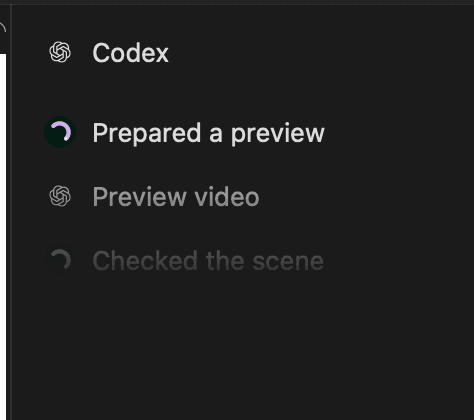
The agent can inspect rendered frames directly through Rotato's tools. It does not need desktop control to see the result. These frames show the authored movie, excluding temporary camera or device adjustments you have not applied to a keyframe.
Review and revise
Ask for a preview after a change. When the agent hands the animation back to you, Rotato fits the full timeline in view. Press Play to judge the movement; still frames alone cannot show its rhythm.
To revise it, describe the change in the same conversation. For example, ask for a slower reveal, a closer crop, or a different ending. You can also continue editing with Rotato's normal controls.
Use Edit > Undo, or ask the agent to undo. Each ordinary edit has its own Undo step. Replacing a complete animation plan is one undoable change.
Export
Ask for a draft movie to check before the final export. The agent can return an editable project copy as well as a movie or still image. Keep the editable project if you want to revise it later.
Turn off Allow agent control when you want to stop tool access. If you prefer Terminal automation, see the Rotato CLI guide.