Skip to article

Use audio from a screen video

Keep the sound from a recording, adjust its volume, and see which screen clips are unmuted.

Your screen recording may include narration, music, or app sounds you want to keep. Screen videos start muted in Rotato. Turn off Mute to include their original audio in your movie.

Turn on a video's audio

  1. Add a video to your mockup.
  2. Select the device and expand Screen in the sidebar.
  3. Move the playhead inside the video clip you want to edit. If the device has more than one display, choose the display first.
  4. Turn off Mute.
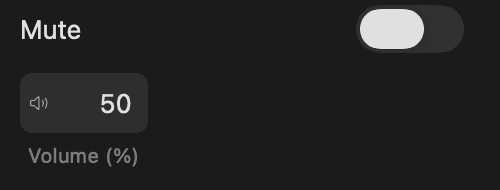
  5. Set Volume (%). Type a value from 0 to 100 and press Return. For example, 50 plays the sound at half volume.
  6. Press Space to preview the movie with its audio.
Rotato Screen controls with Mute turned off and Volume (%) set to 50
Turn off Mute to reveal the volume control.

Each video clip has its own mute and volume settings. Muting a clip keeps its volume setting, so you can turn the sound back on at the same level. Replacing the video starts the new recording muted.

Find audio on the timeline

Expand the device's group in the timeline and look at its Screen track. A speaker icon beside a video's filename means the clip is unmuted.

Rotato Screen track with a speaker icon beside an unmuted video clip
The speaker icon identifies an unmuted screen video.

Right-click a video clip and choose Mute or Unmute to change its audio without opening the sidebar. Press Command-Z to undo the change.

Video clip context menu offering Mute and Delete Screen Content
An unmuted clip offers Mute; a muted clip offers Unmute.

The icon shows the mute setting, including when volume is 0%. Turn on Mute to remove the icon.

Save and export

Save your project to keep each clip's settings. The same mute and volume settings apply to timeline playback and the exported movie. Render a short movie and listen to it before exporting a longer sequence.

If you cannot hear the clip, check that the source video contains audio, Mute is off, Volume (%) is above zero, and the playhead is inside the clip. Use the main timeline to listen; hovering over the sidebar's video thumbnail stays silent.

For separate music, narration, or sound effects, use the Audio track.

Powered by Fillo