Using landscape mode
Get the right orientation for your landscape orientation designs
 By Morten Just
Use a landscape presentation for wide designs such as games or video players.
The pose menu shown in this walkthrough is from a development build. It may not be available in your installed version yet.
Choose a pose
- Select a supported phone or tablet.
- Open the pose menu in the selected device's header.
- Choose Landscape.
- Add your landscape screenshot in Screen.
- Check the screen dimensions before exporting a design from your design tool.
A pose changes the device presentation and screen orientation. Moving the camera changes the view, so it is a separate control.
Existing projects and earlier app versions
Older projects can retain automatic orientation until you choose an explicit pose. Earlier app versions use the existing orientation controls. If your design triggers a rotation when imported, check which orientation mode the device is using.
Check the final result
Look for cropped edges, sideways text, and stretched circles. Replacing the screen image should not be used as a substitute for choosing the intended pose in the new pose workflow.
See device poses for laptop and folding-device starting positions.
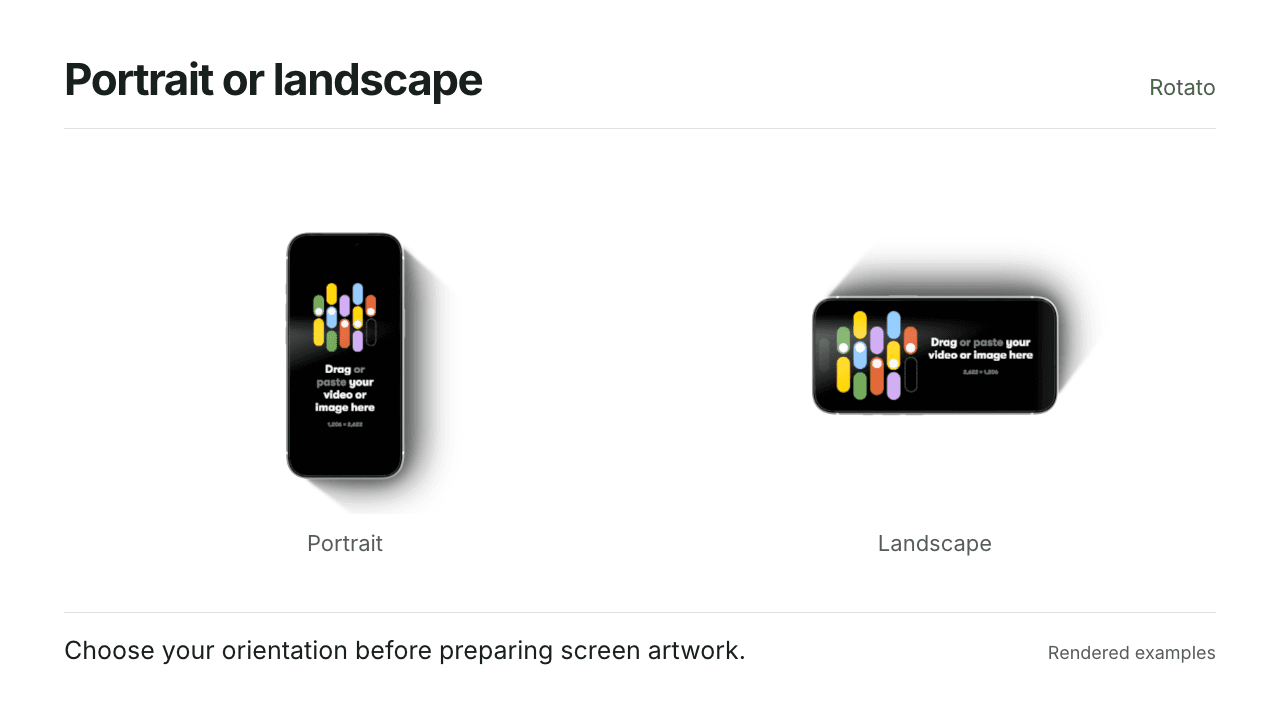
Rendered examples of the result.