Add an image or video overlay
Place a logo, graphic, or video on the canvas and replace it without rebuilding its animation.
 By Morten Just
Use a Media Overlay for an image or video that stays flat on the canvas while your mockup moves. It can sit in front of or behind your devices.
Add and place media
- Move the playhead to the intended start time.
- Click Media Overlay beneath the timeline.
- Choose an image or playable video in the file panel.
- Drag the overlay on the canvas to move it. Drag a corner to scale it, or use Position and Scale in the sidebar.
- Turn on Media Behind if the overlay should sit behind the devices.
For a transparent logo, choose an image with an alpha channel. Transparent video is supported too, including ProRes 4444. Check the result over your chosen scene background.
Replace an image or video
Right-click the overlay's timeline block and choose Replace Image… or Replace Video…, depending on its current source. The file panel accepts either kind of media. You can replace an image with a video or turn a video overlay into a still image.
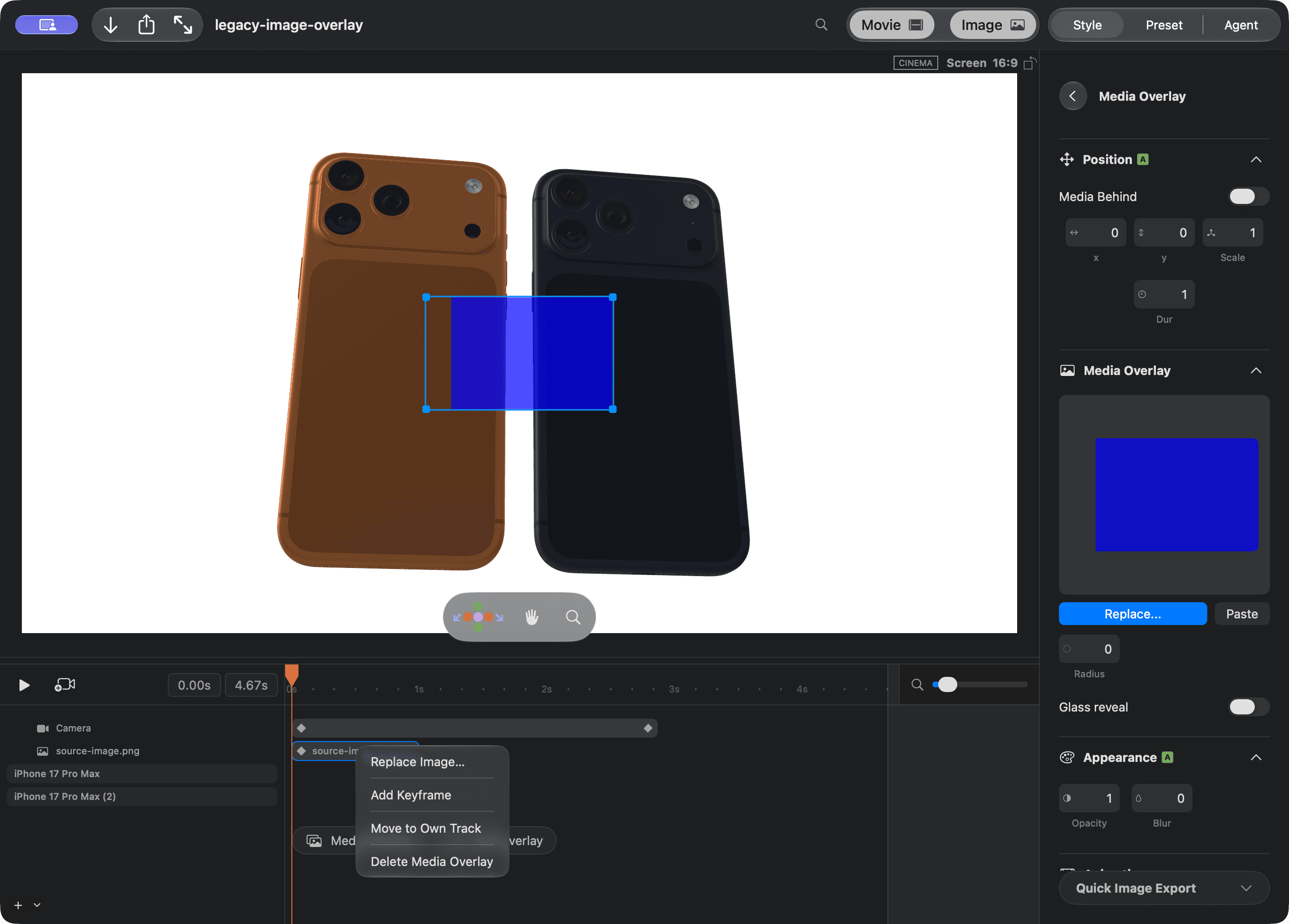
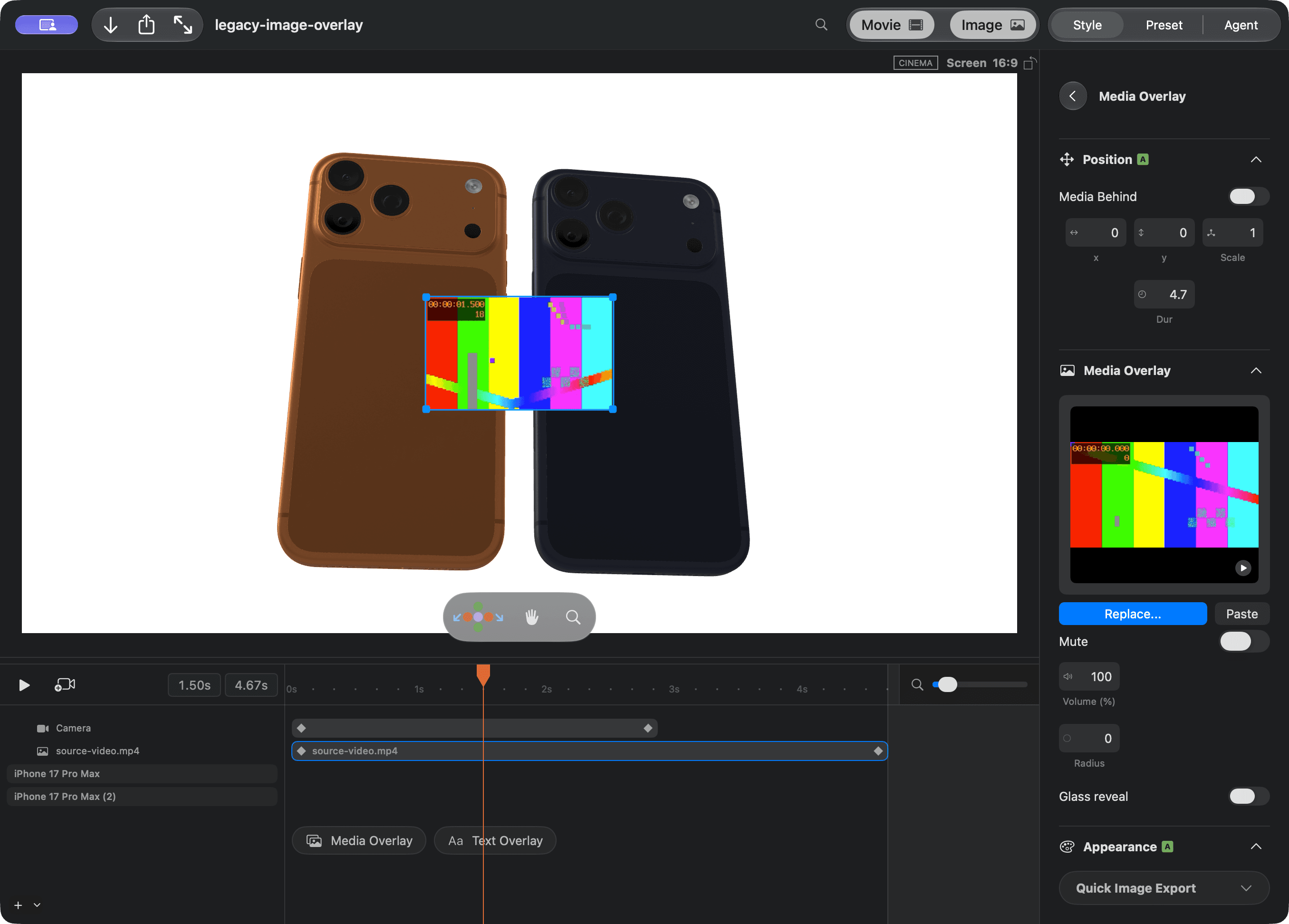
You can also select the overlay and use Replace…, Paste, or drop a file onto the sidebar's media well. Hover over a video preview to inspect its frames.
Replacement keeps the overlay's position, size, timeline placement, keyframes, and effects. It resets video sound to muted. Cancel the file panel to keep the source unchanged. Press Command-Z to undo a replacement and Shift-Command-Z to redo it.
Set its visible duration
Set Dur in the sidebar to choose how long the overlay stays visible. Move its timeline block to change when it starts, or resize the block to adjust its duration.
Scrub the timeline or press Space to preview the result. A video starts from its first picture at the overlay's start time. If the overlay lasts longer than its source, it holds the video's final picture.
Include video sound
Video overlays start muted. Turn off Mute in the sidebar and set Volume to include their sound during playback and in the exported movie. Extending an overlay beyond its source holds the final picture without extending the source audio.
Animate and save
Use Opacity, Blur, and Animation in the inspector, or edit the overlay's keyframes. Existing image overlays keep their appearance and animation when you open older projects.
Saved projects include their overlay sources, so the original image or video does not need to stay in its import location.
For an image that rotates in 3D, use a Simple Universal plane.
Give the image a glass entrance
It makes the image appear through a growing rounded frame, then settles into the original image.
- Select the media overlay in the canvas or timeline.
- In the sidebar, turn on Glass reveal.
- Move the playhead to the start of the overlay and press Space, or scrub through its entrance.
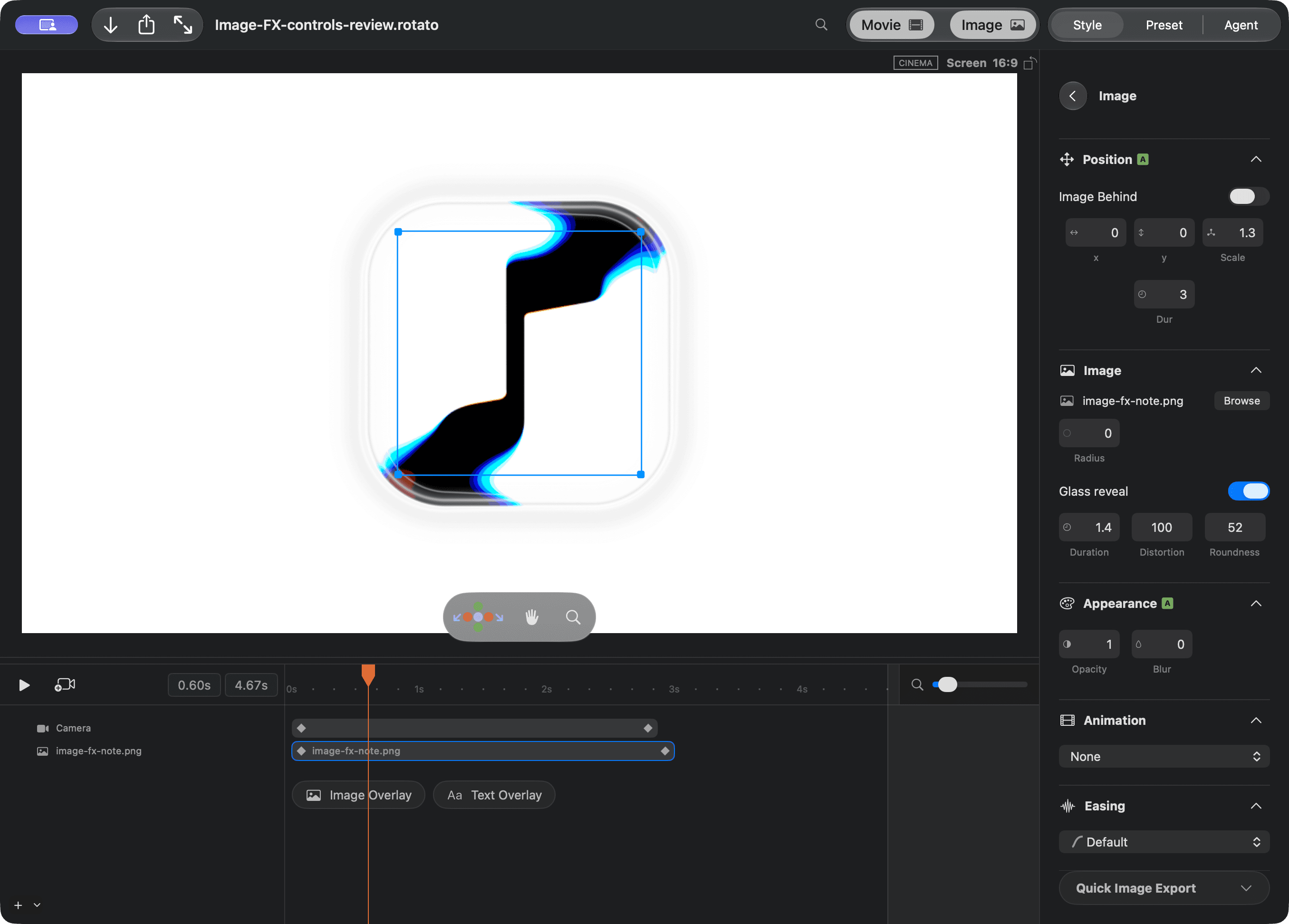
Use the three controls below the switch to adjust the entrance:
- Duration sets how long the reveal takes, from 0.1 to 5 seconds. The default is 1.4 seconds. A shorter overlay compresses the effect so the original image can appear before it ends.
- Distortion changes how strongly the image bends and separates into colors. The default is 100%. Set it to 0 for no image distortion, or raise it toward 200% for a stronger effect.
- Roundness changes the glass frame's corners, from square at 0 to fully rounded at 100. The default is 52.
These controls update the preview immediately. They are saved with the project, and you can undo changes with Command-Z. They leave the image's position, scale, visible duration, and existing animation settings intact.
The effect bends the image itself. It does not distort the scene behind a transparent image. Turn off Glass reveal to restore the ordinary image throughout its visible duration.