How to pan from a monitor mockup to a phone mockup on the desk
Let's make a cool transition that starts on a monitor, then pans down to a phone on the same desk (Video tutorial and template download)
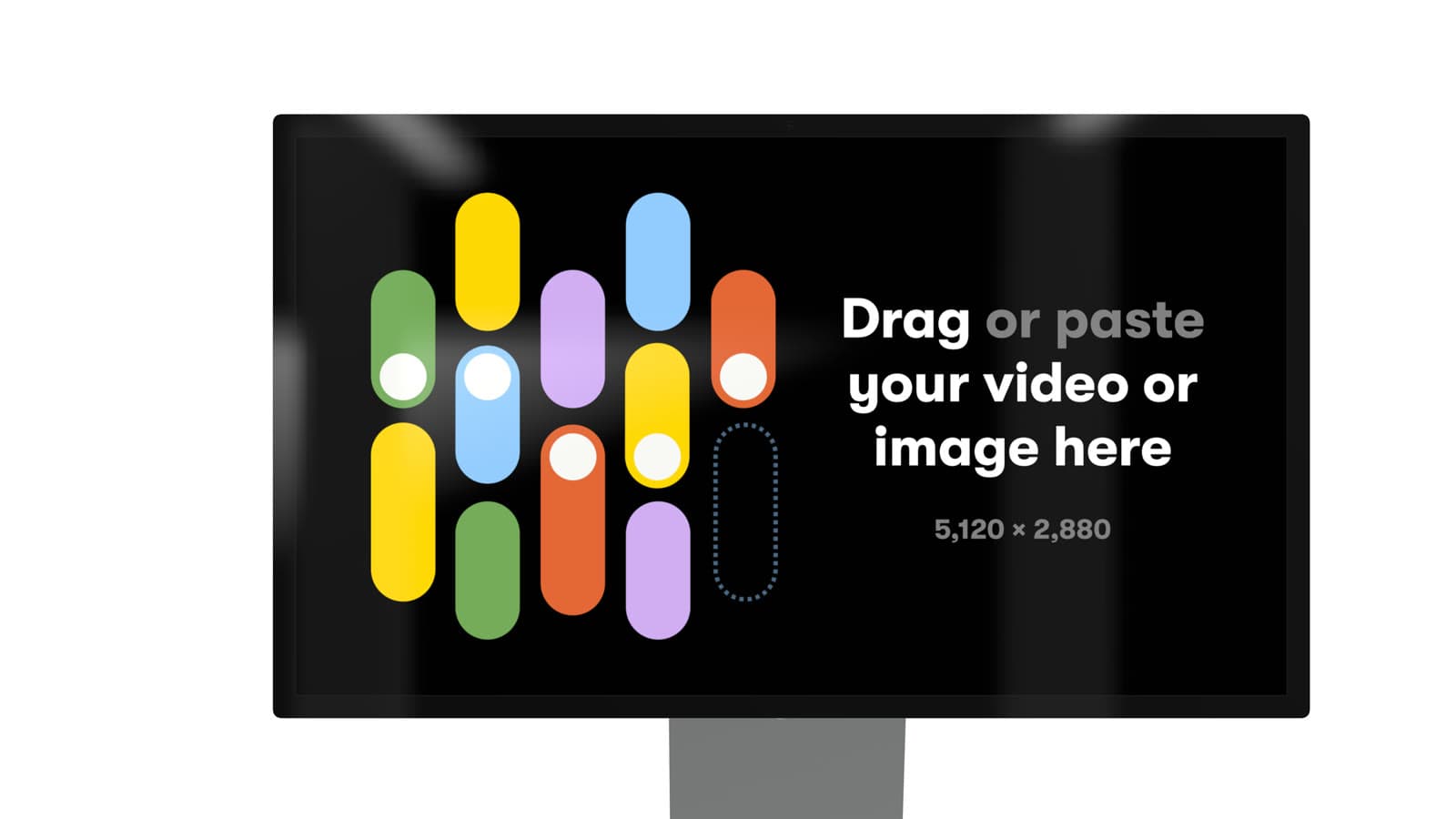
After all these years I still see Rotato animations that surprise me. I spotted this X post from Nathan Schroeder that starts on a desktop display, dives past its edge, and lands on a phone. Smooth camera work!
Build the scene
- Open the Studio Display from Rotato's device picker.
- Under Devices in the sidebar, click Add and choose iPhone 17 Pro, or whichever phone you want.
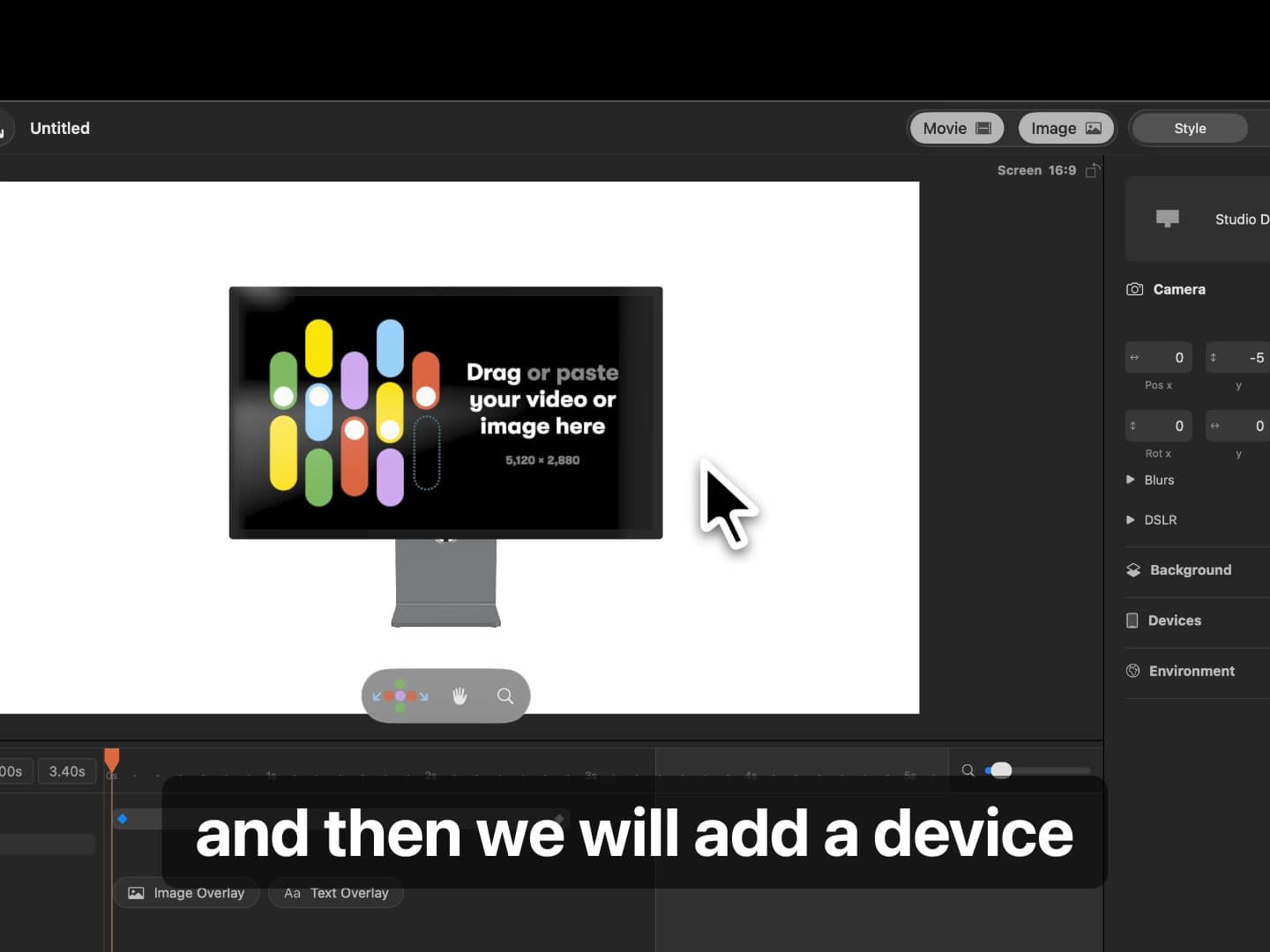
Start with the Studio Display, then add the iPhone as a second device.
- Remove the camera animation that Rotato adds by default: click it and hit Backspace.
- Select the iPhone and move it to the right of the monitor. Rotate it 90 degrees so it lies flat, then move it down until the opening camera angle cannot see it.
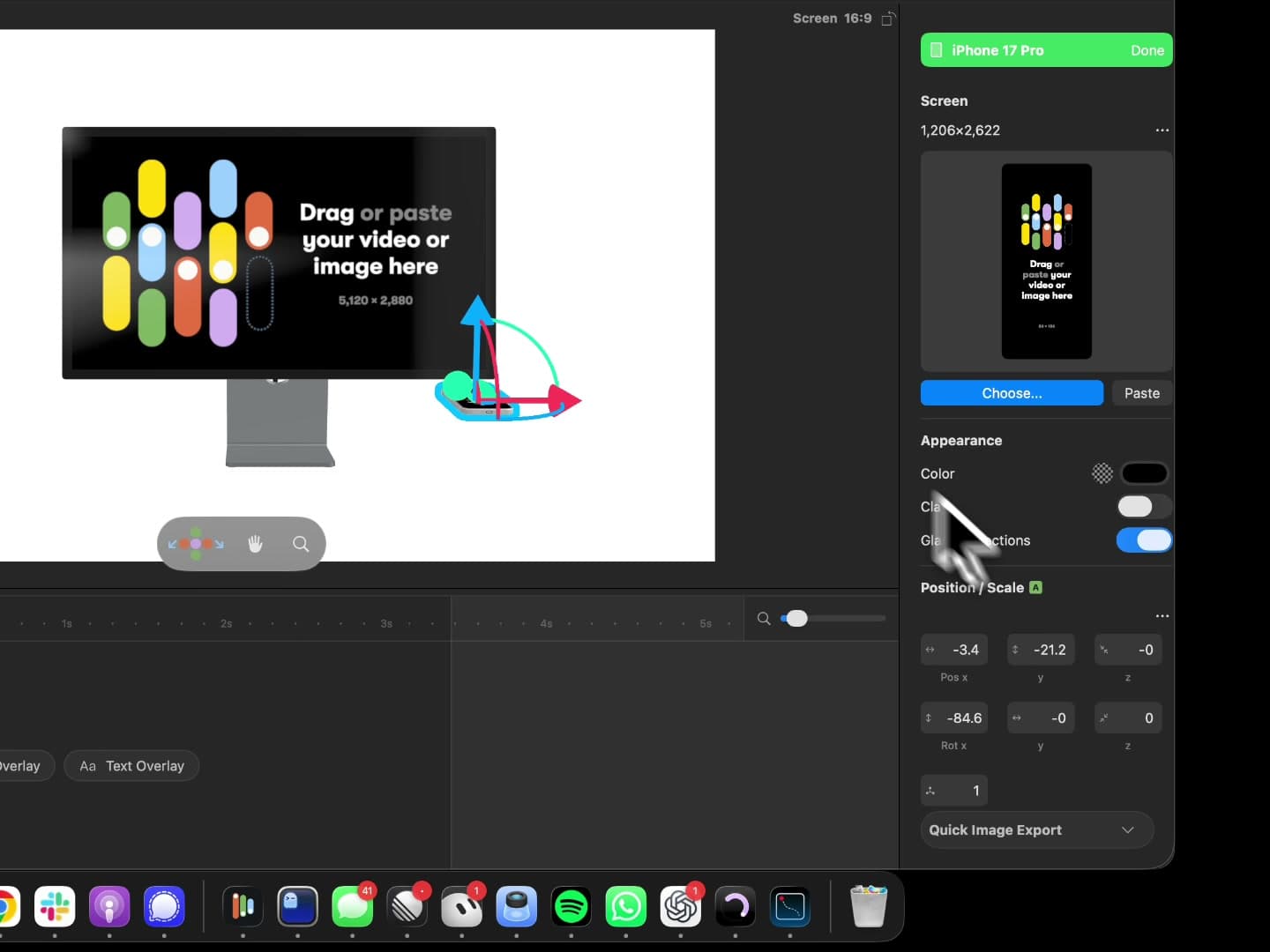
Rotate the phone 90 degrees, then place it below and to the right of the monitor.
- Adjust the camera so the Studio Display fills the first shot. Zoom in enough to keep the hidden iPhone outside the frame.
- Leave a short pause at the beginning, then add a camera animation. This gives the viewer a moment to read the monitor before the transition starts.
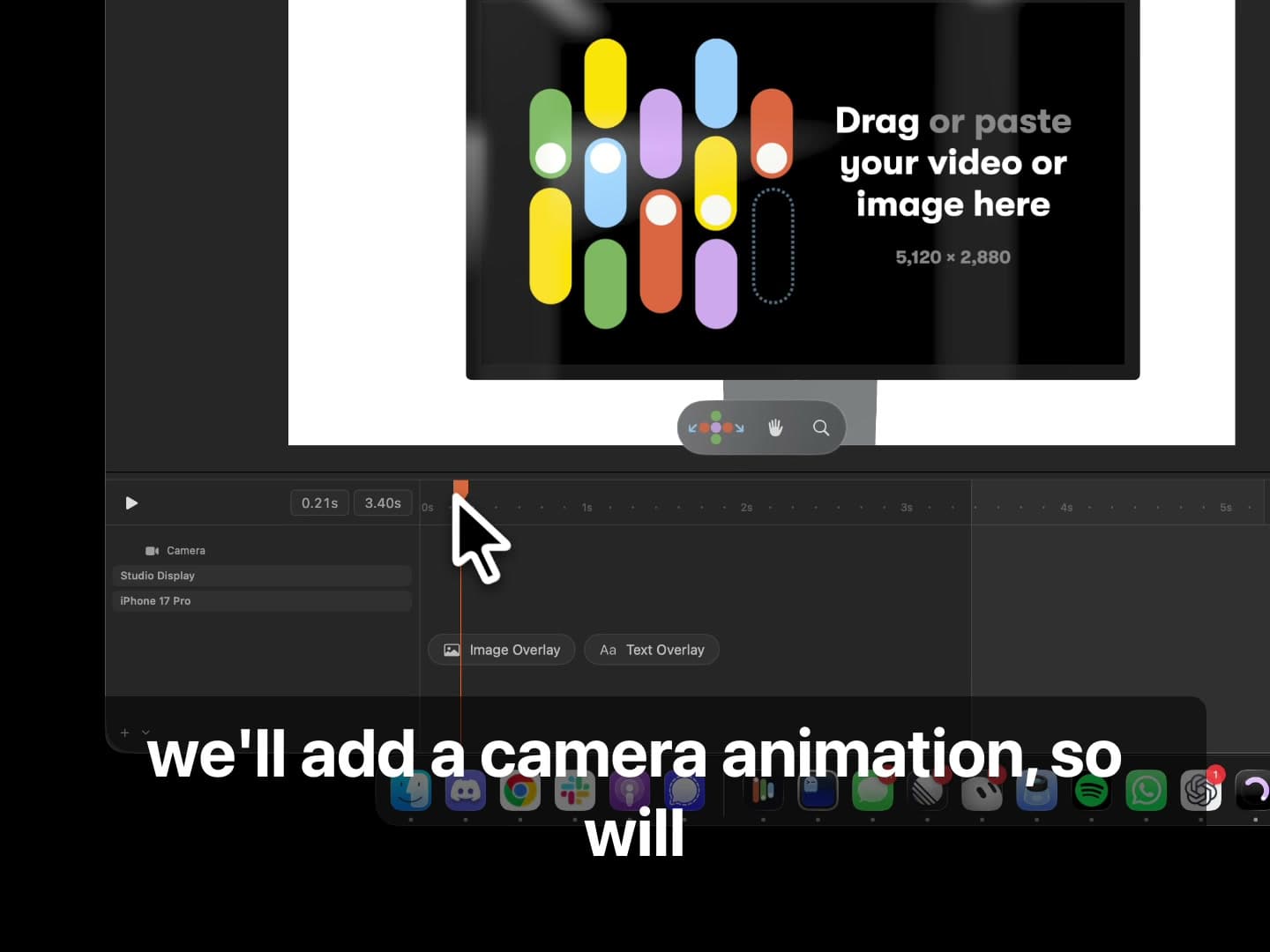
Leave a short hold on the monitor before the camera starts moving.
- Go to the last camera keyframe. Point the camera down, move it toward the iPhone, and zoom until the phone fills the frame. A slight slant makes the ending feel less rigid.
- Preview the move and extend the animation if the transition feels rushed.
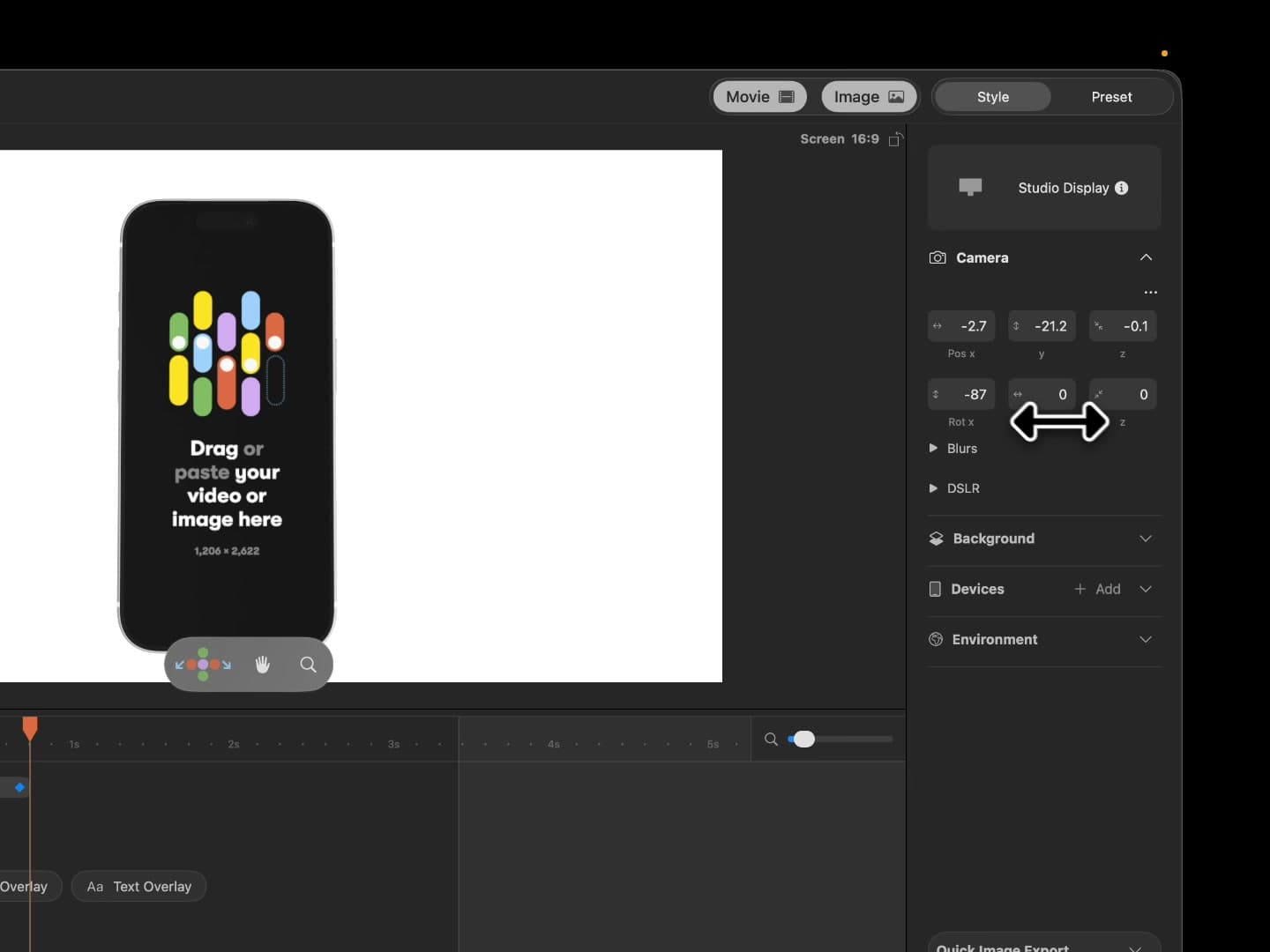
At the final keyframe, frame the iPhone tightly and add a slight slant.
The phone never replaces the monitor. It sits just outside the opening shot, ready for the camera to find it.
Download the template
You can build the scene yourself with the steps above, or download the finished scene and make it your own.
Download templateMonitor to DisplayRotato project · 11.9 MB
Replace the screen media on the Studio Display and phone with your own design, then adjust the final camera angle to fit your composition.
The template is also available inside Rotato's template picker under Desktop, in the Simple and Slides sections.