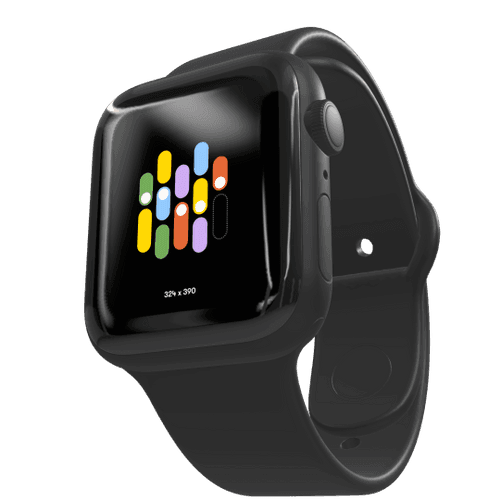
HomeView Mockup
Show a dashboard, clock, photo collection, or media player on a compact display. HomeView includes standing and wall-mounted models, so you can choose the setting that fits your design. Open File → New → Devices in Rotato, search for HomeView, and open the standing or wall-mounted model. Drag your image or video onto its screen, then adjust the camera and background. Open Templates → HomeView in the welcome window for five animated compositions and a wall scene. Replace the example artwork with your own and adjust the animation. The wall scene includes an editable shadow that fades away from the device. Device access depends on the updates included with your license. Check Settings → License in Rotato if a new device shows a watermark.
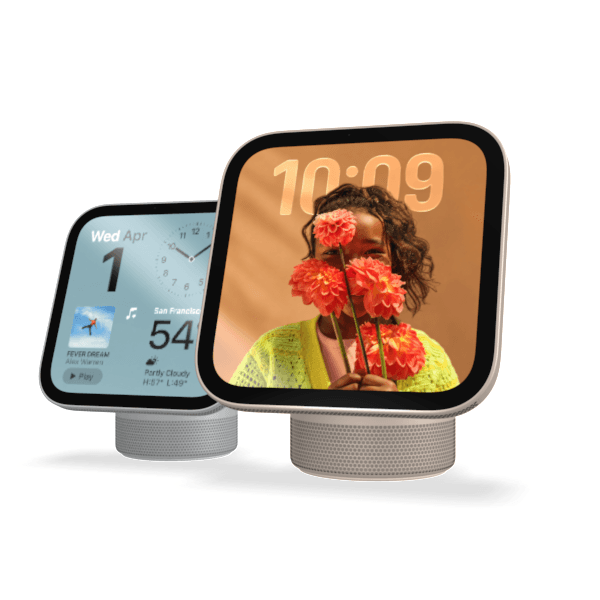
How to make your HomeView Mockup
Step 1
Download Rotato and open Rotato on your Mac
Step 2
Select the HomeView mockup and drag your image or video file onto it
Step 2
Render a photo or video in seconds
100% customizable. 110% awesome.
Click any photo to view a larger size. Each of these took less than a second to render—even those with depth of field. That means more iterations and leveled-up deliverables.
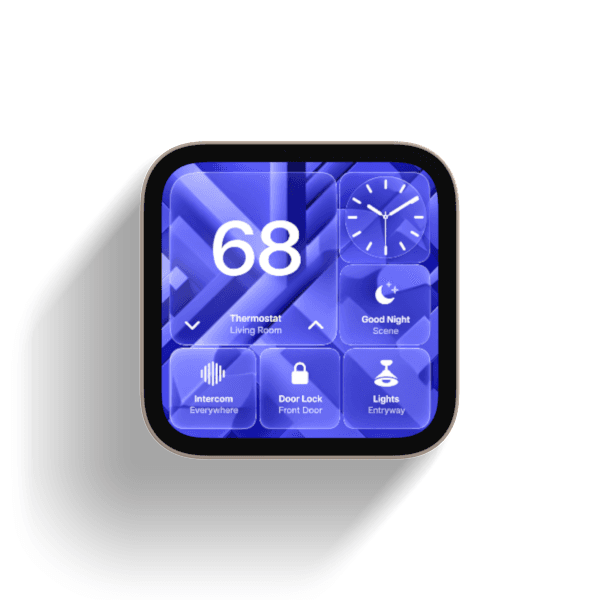
When we say drag and drop, we're dead serious.
Got 65 seconds? Let's 1. import a design, 2. find an angle, 3. export a snapshot, import a landscape mockup, export that one, too, then import a video, create an animation, and render an entire movie.
Insane speed or jaw-dropping quality? Why not both?
Rotato renders millions of pixels per second, up to 10 times faster than cloud-based solutions, thanks to our direct integration with Metal Layer 2. For you, that means no cost-per-render, and faster iterations, and that means better results.