Releases
New features, improvements, and fixes in Rotato for Mac.
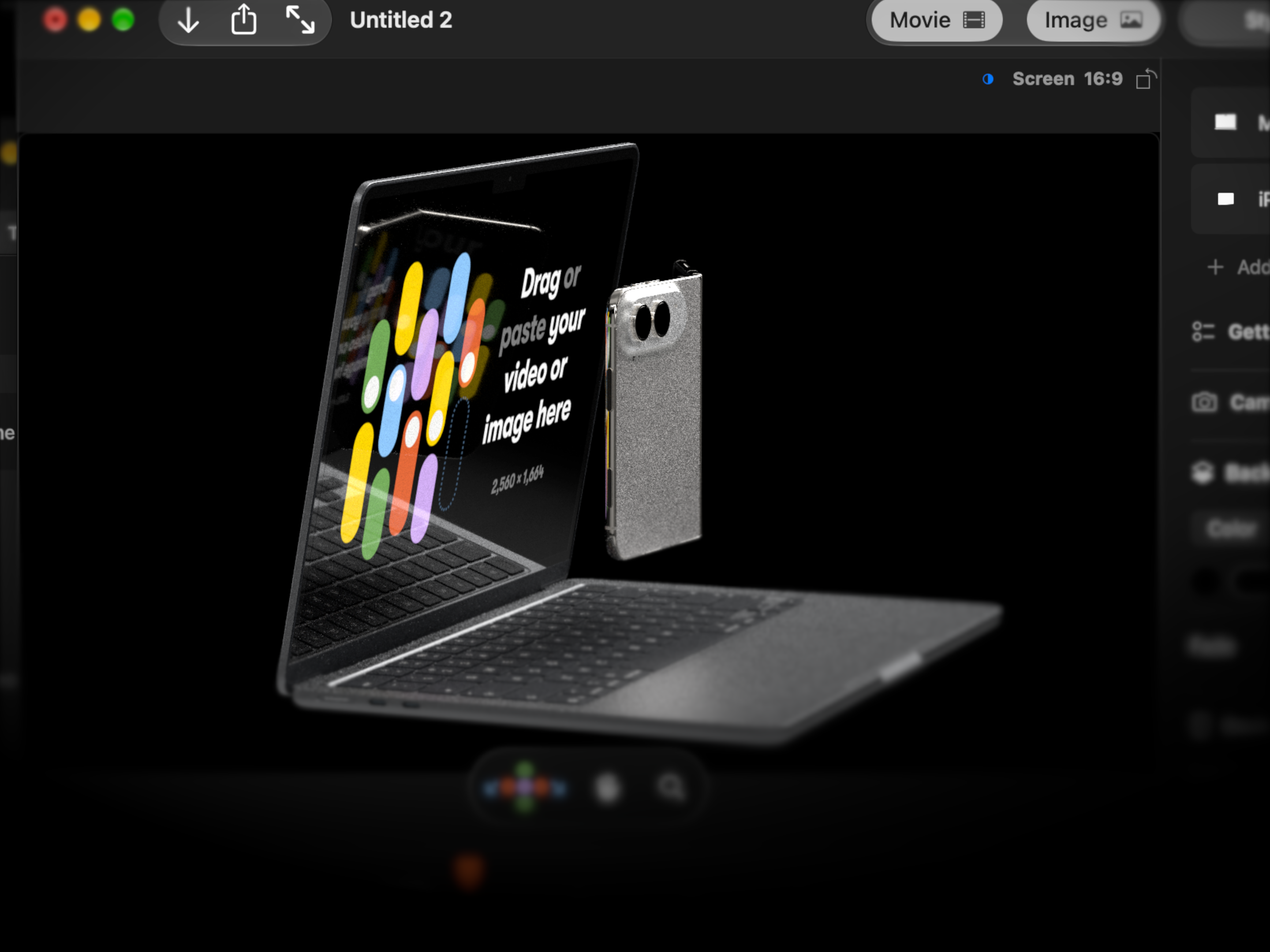
Device animations, cinematic mode, titles, 9 new devices + more
This is a big one, so hang tight!
Animate individual devices
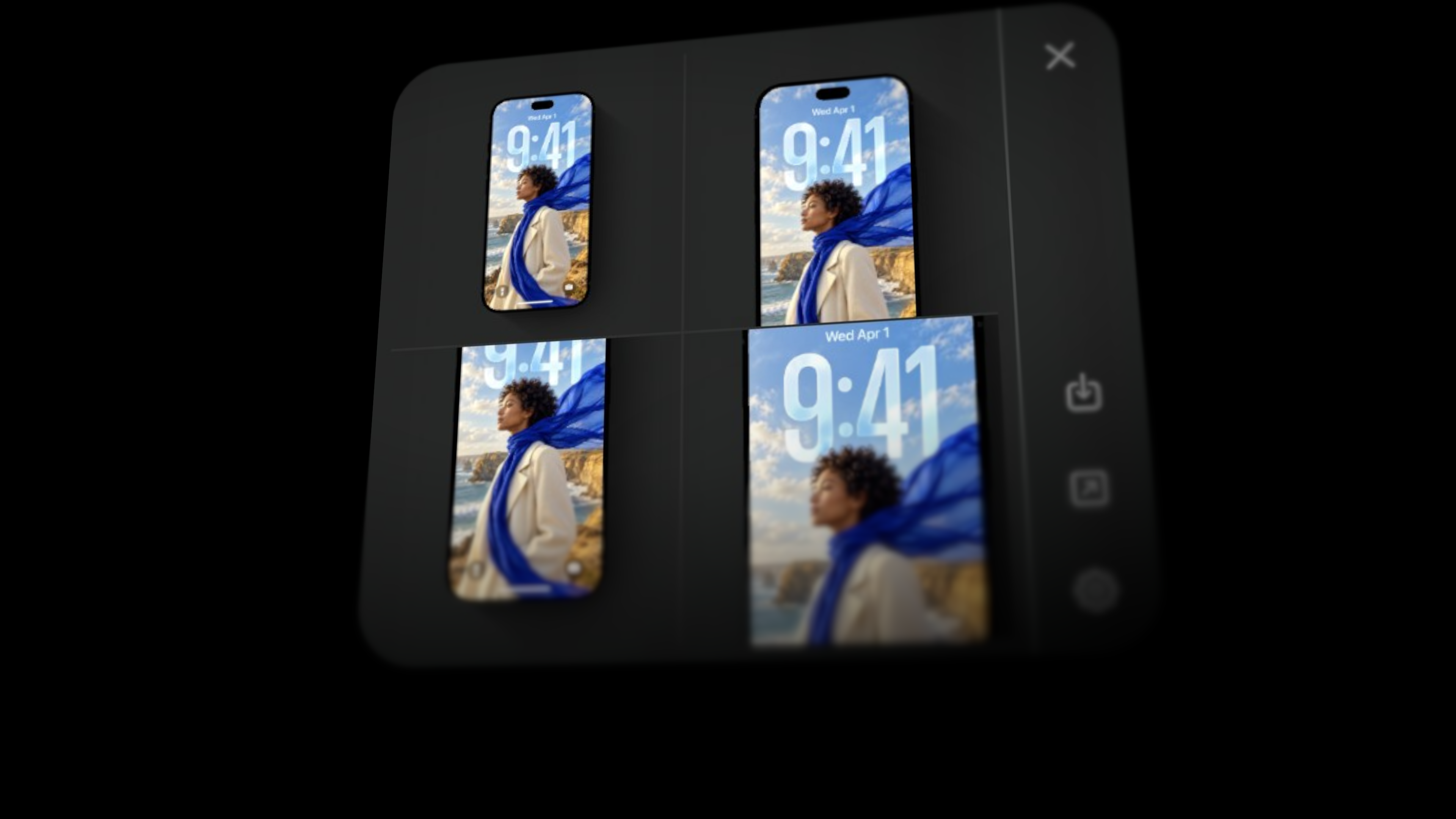
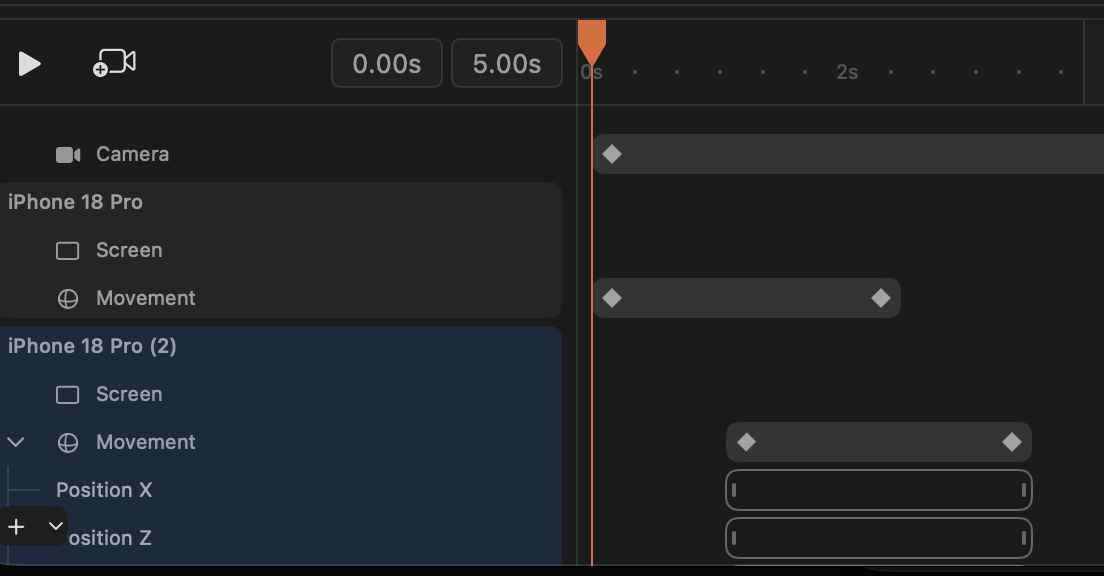
You can now animate individual devices, screen contents, laptop lids, text, and images on the timeline, with separate timing for individual properties. Move one phone while the camera and the other devices stay still.
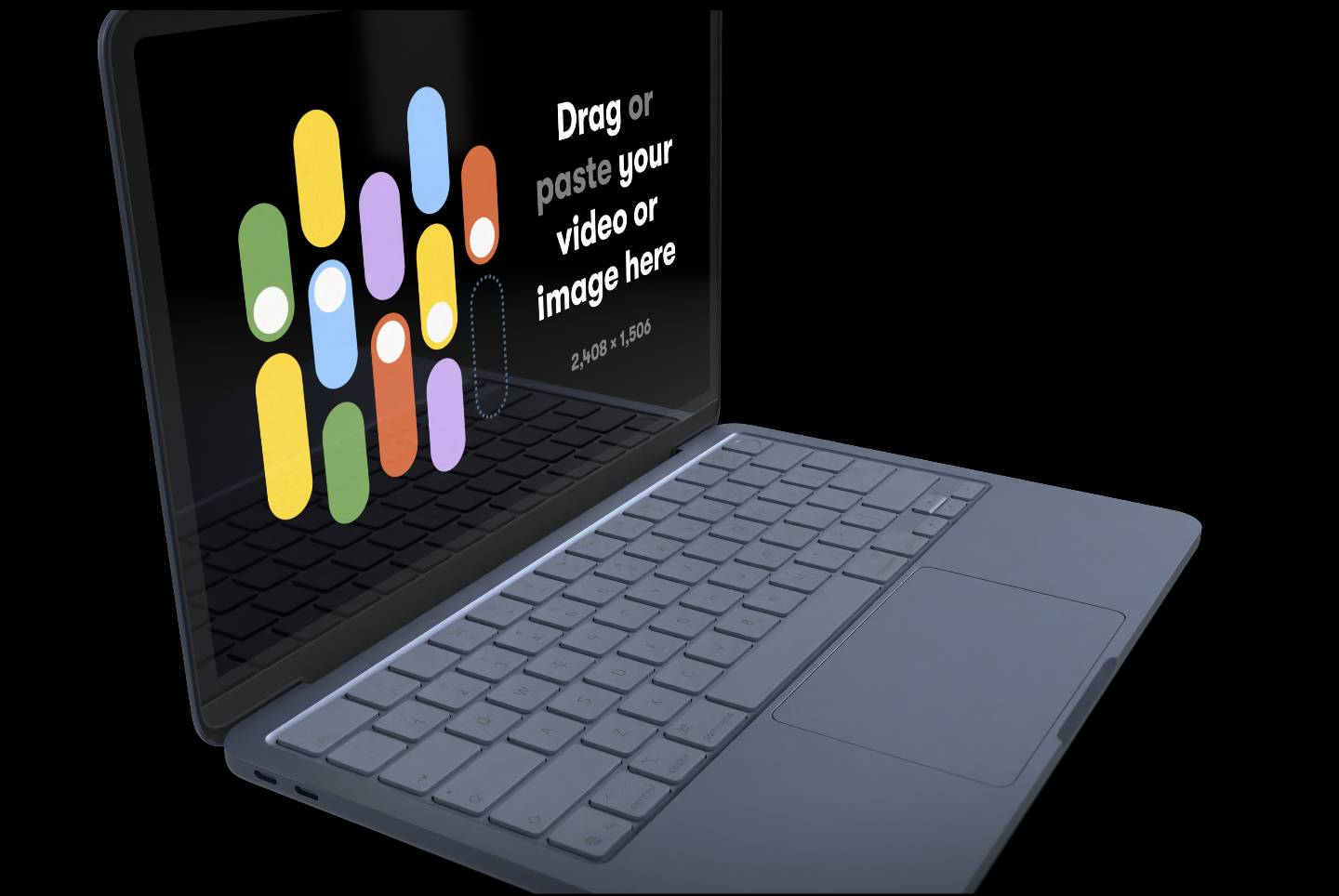
Laptop lids get their own track, so you can open and close a MacBook as part of the shot.

Animate one device independently · Open and close the laptop
Rotato CLI (MCP) for AI agents and scripting
Your AI agent can now compose scenes, animate devices, inspect its work, and export through the Rotato command line tool. You can also create and render templates from your own scripts. A guided installer helps you get started.
2D text and images
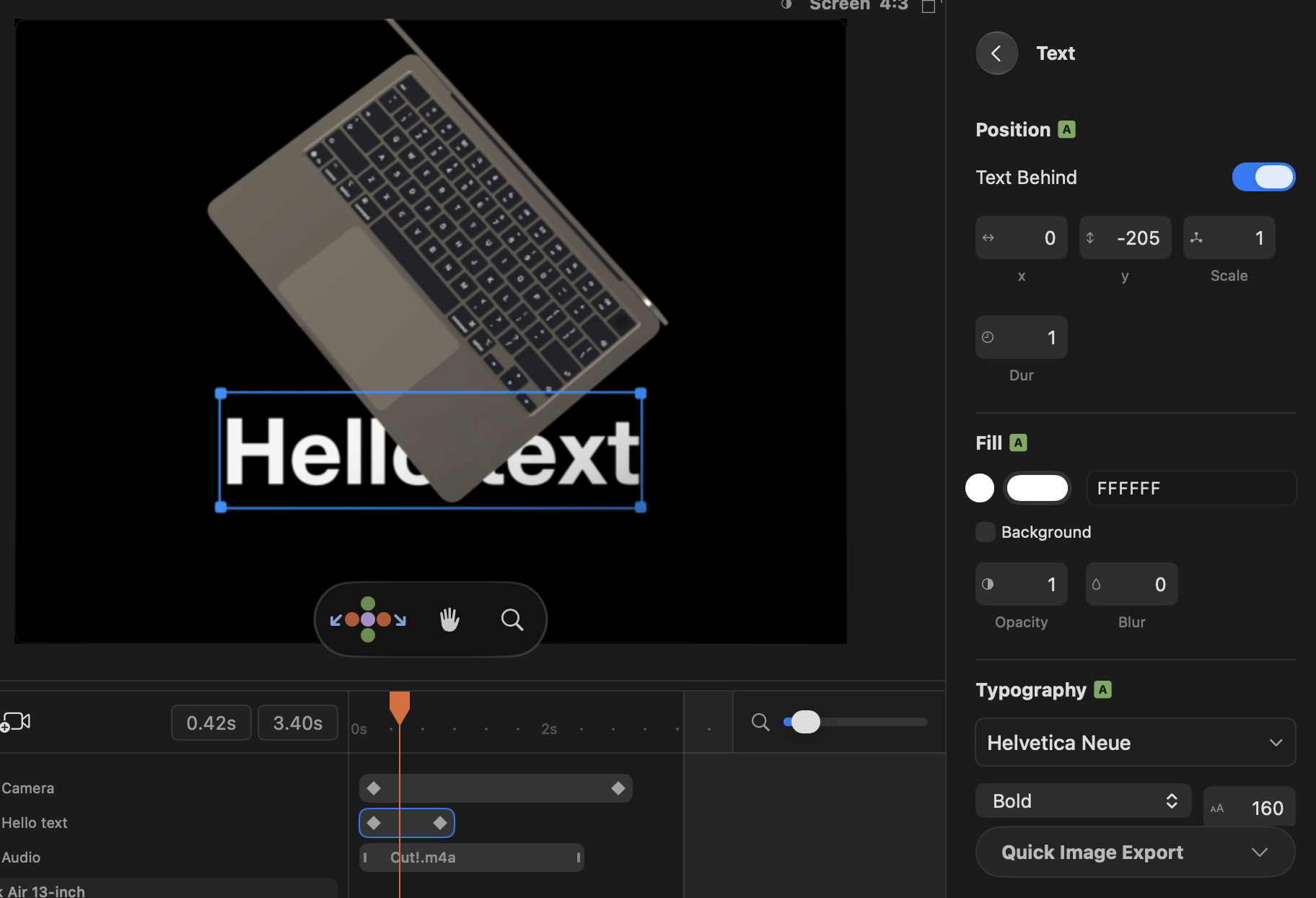
You can now add 2D text and images to your scene, edit text directly on the canvas, style its background, and bring it to life with text animation presets.

Add a 2D title · Add a logo or image overlay · Text animation presets
Multiple audio clips

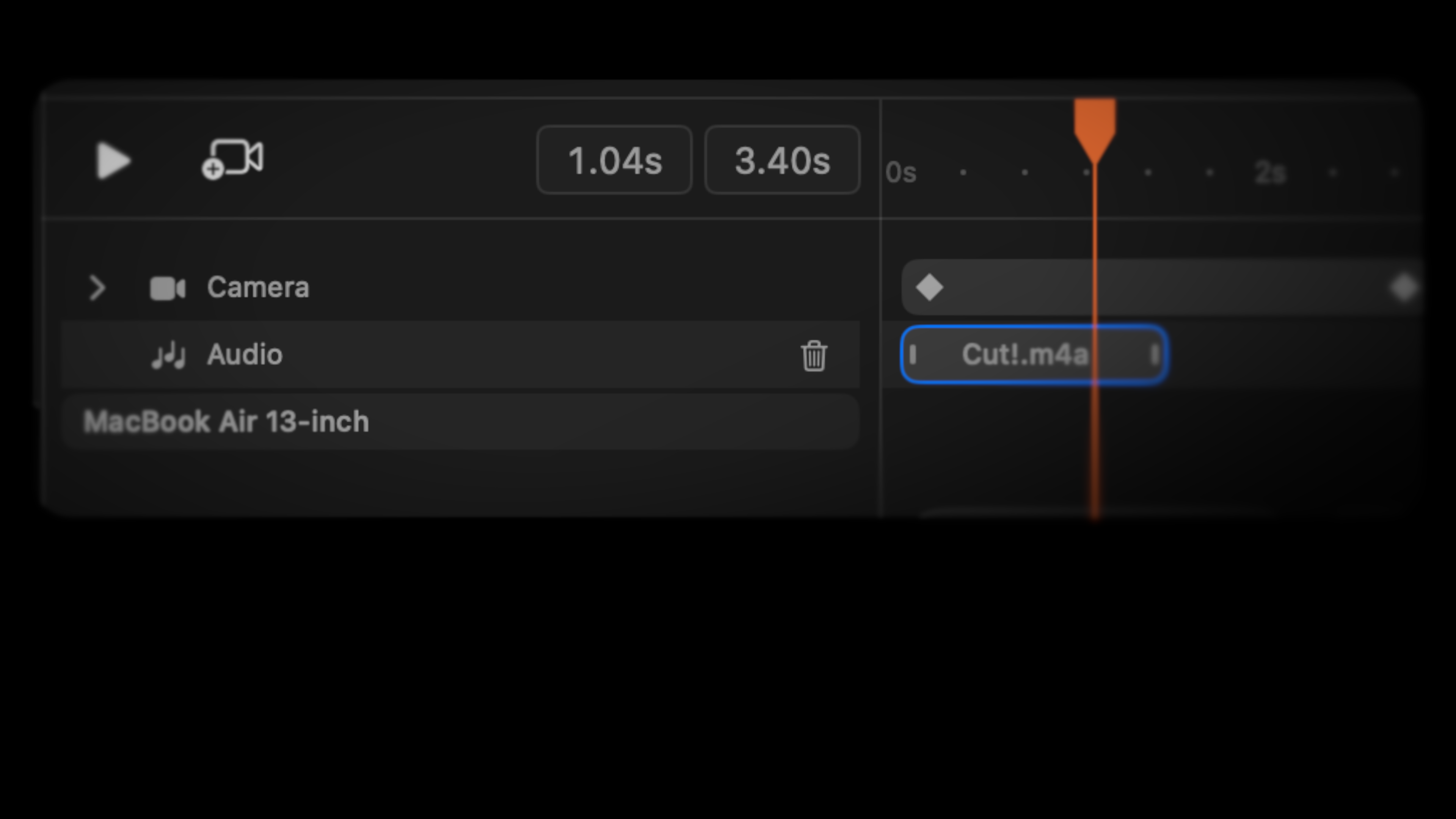
You can now add multiple audio clips to the timeline, move and trim them, and hear them in previews and exported movies.
Rotato Cinema renderer
You can now try experimental, cinema-grade for previews, still images, and movies, with studio shadows and quality presets for still exports.
The Cinema Renderer uses the same technique as e.g. Pixar movies to get shadows, light bounces and reflections true to life, and you can even see a low quality preview right in the viewport when you move the camera or update the scene otherwise.

Render an image with path tracing · Render a video with path tracing · Preview with Rendered View
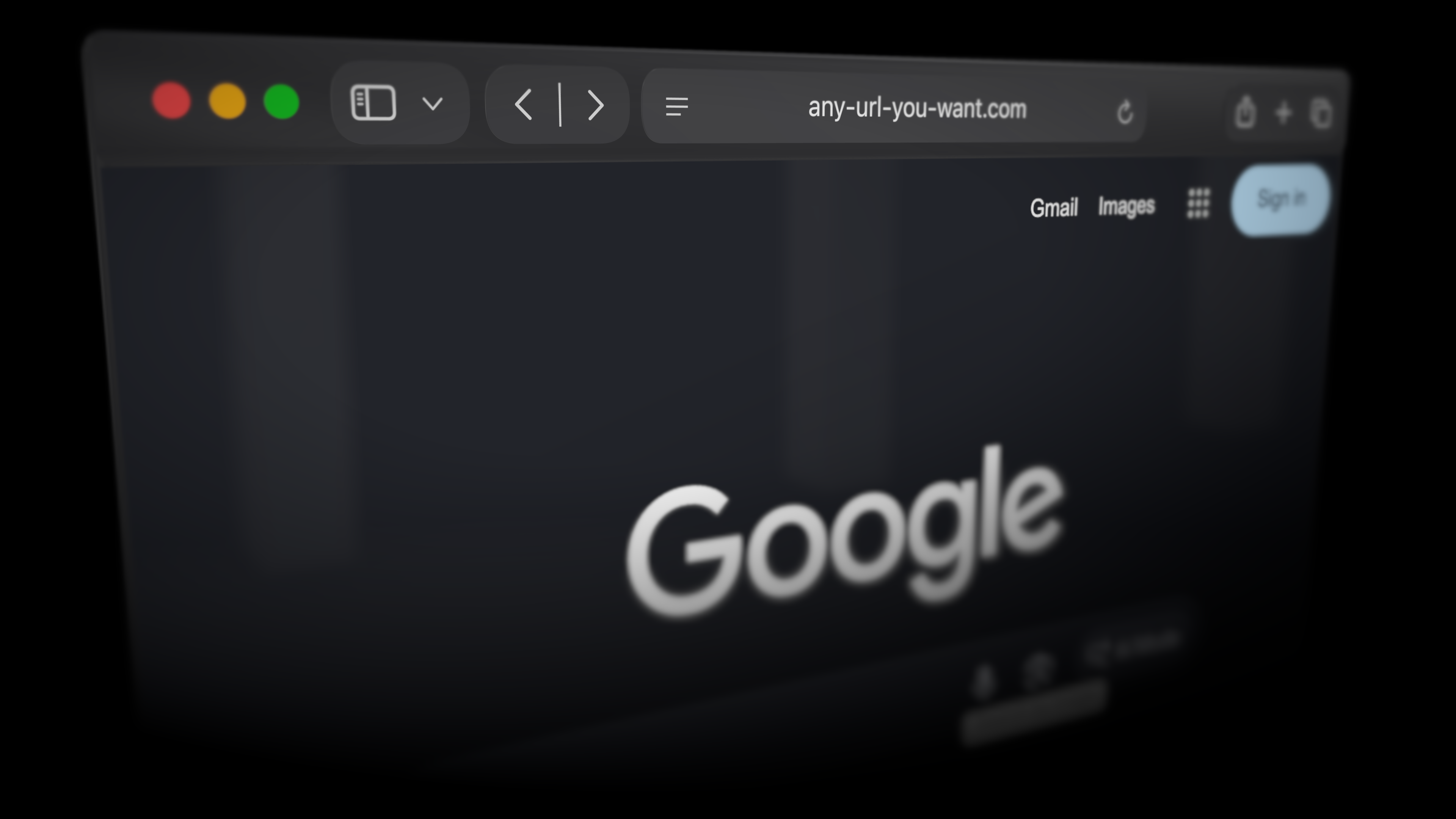
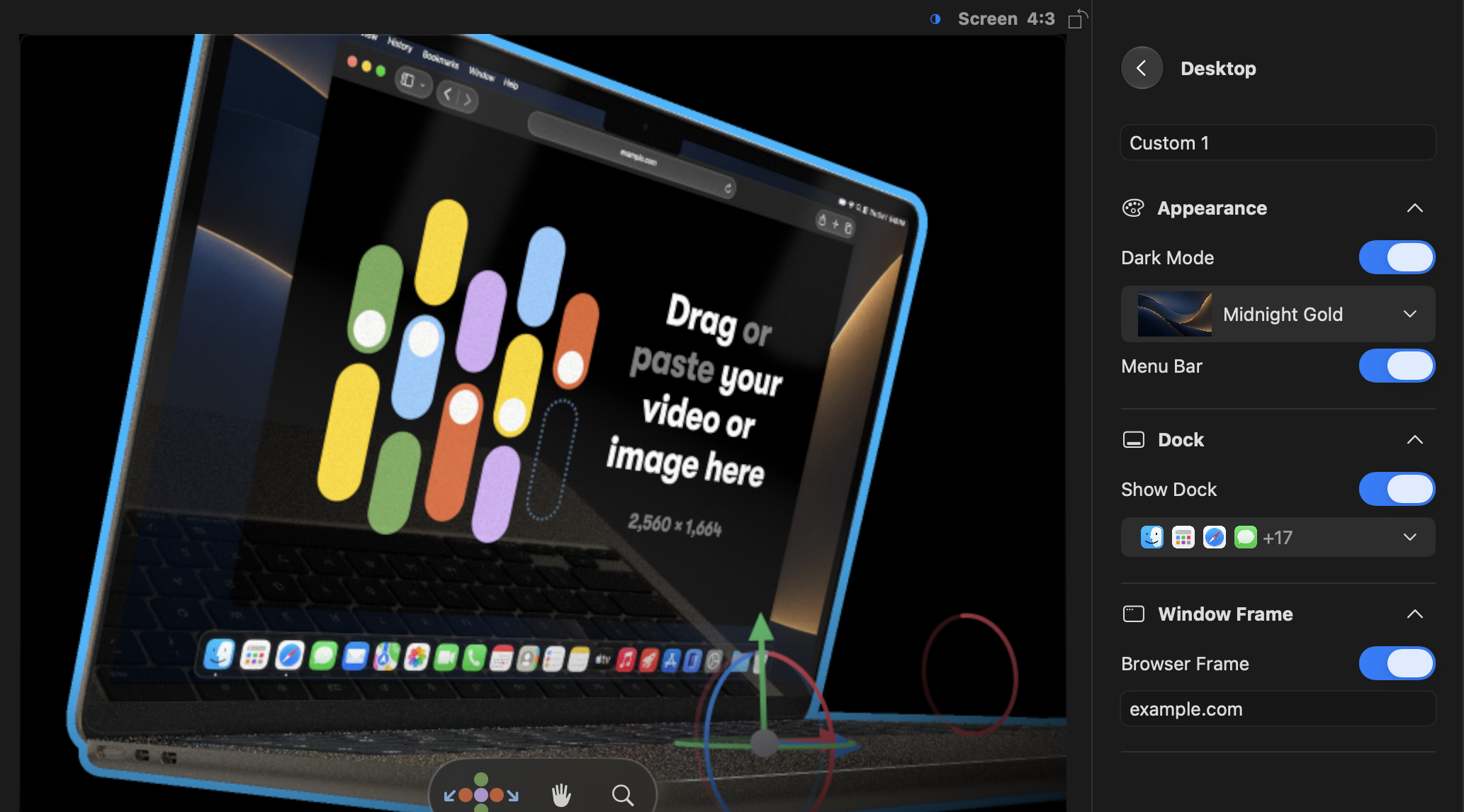
Desktops and browser UI for laptops and monitors

It can be a hassle to prepare a full macOS screenshot, so Rotato can now do that for you. We know how important it is to make it just perfect, so you can customize everything: dark mode, light mode, desktop background presets, your own desktop background, dock, exactly which icons to show in the doc, and a highly requested one: a browser, with a customizable URL field.
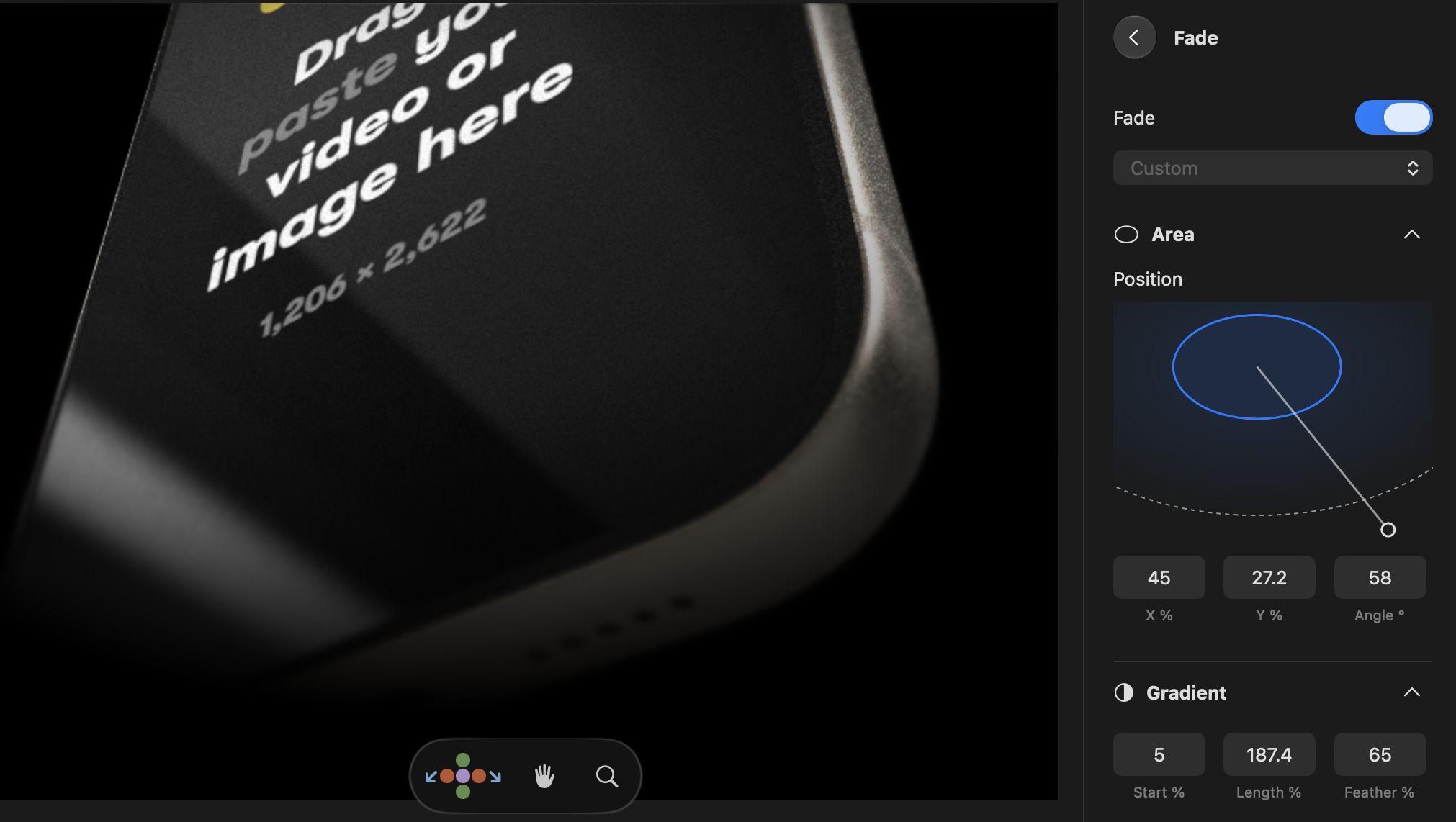
Fade into the background

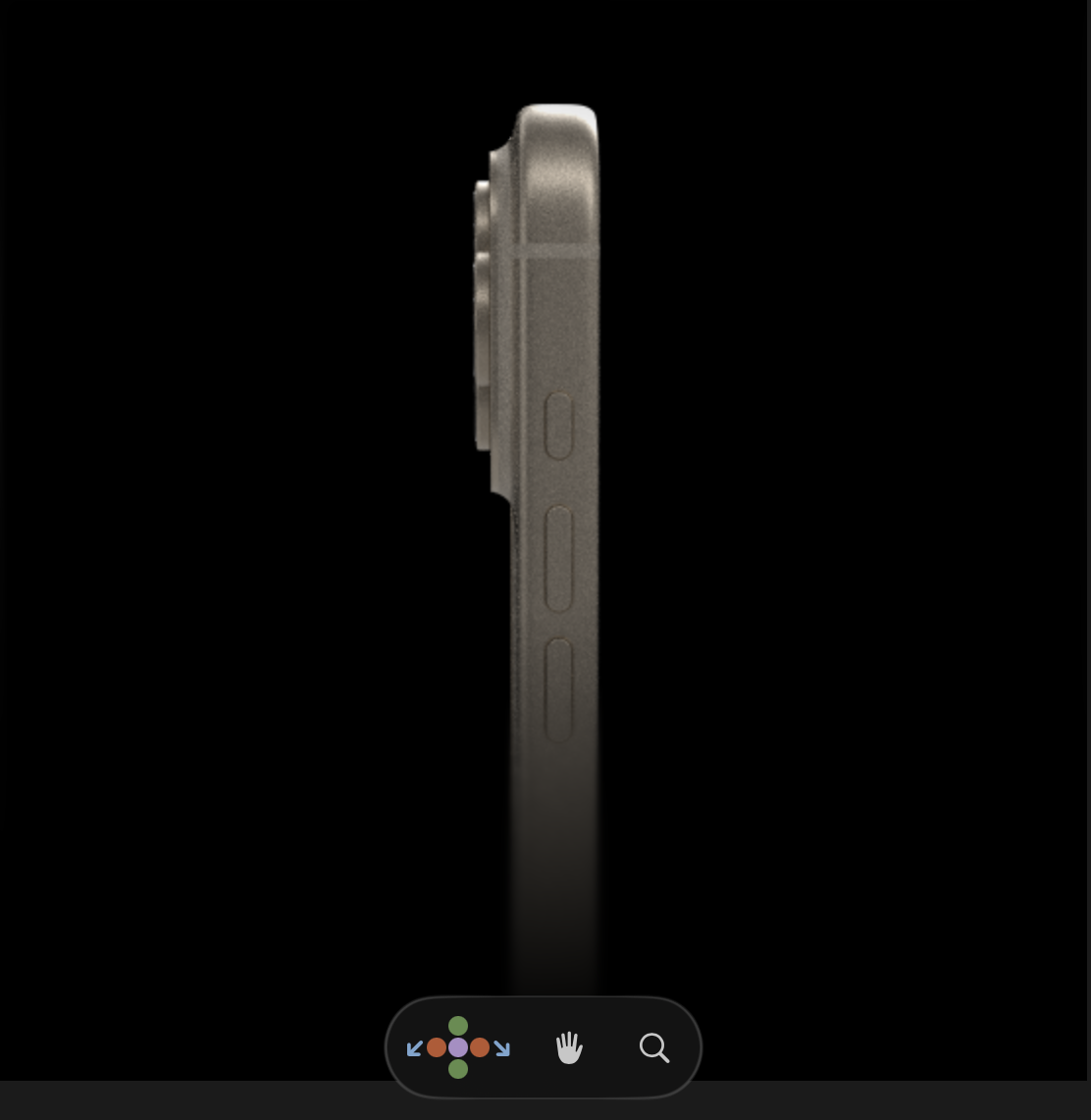
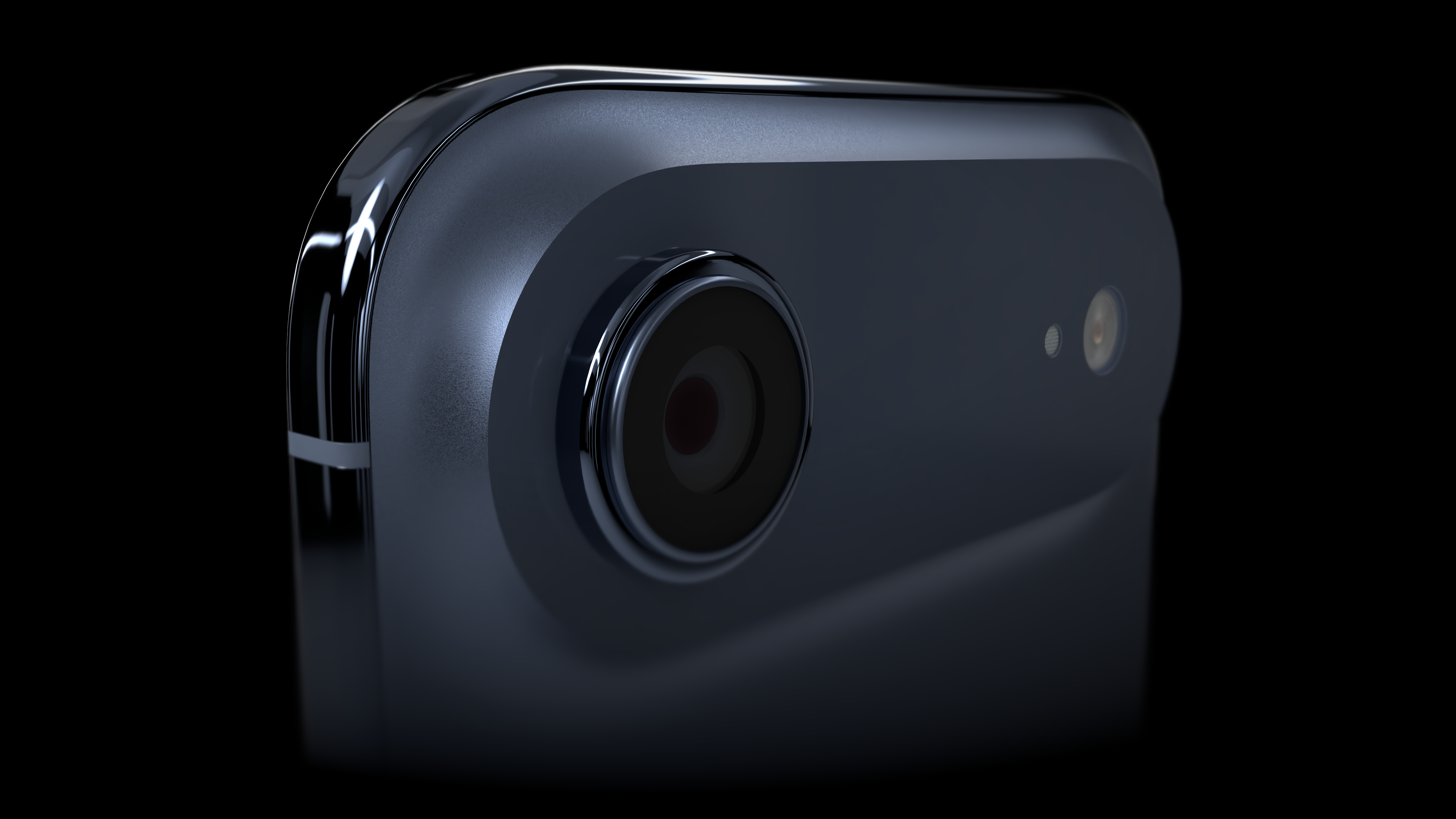
Fade and blur to make your mockup blend in naturally with the background, like on this page.
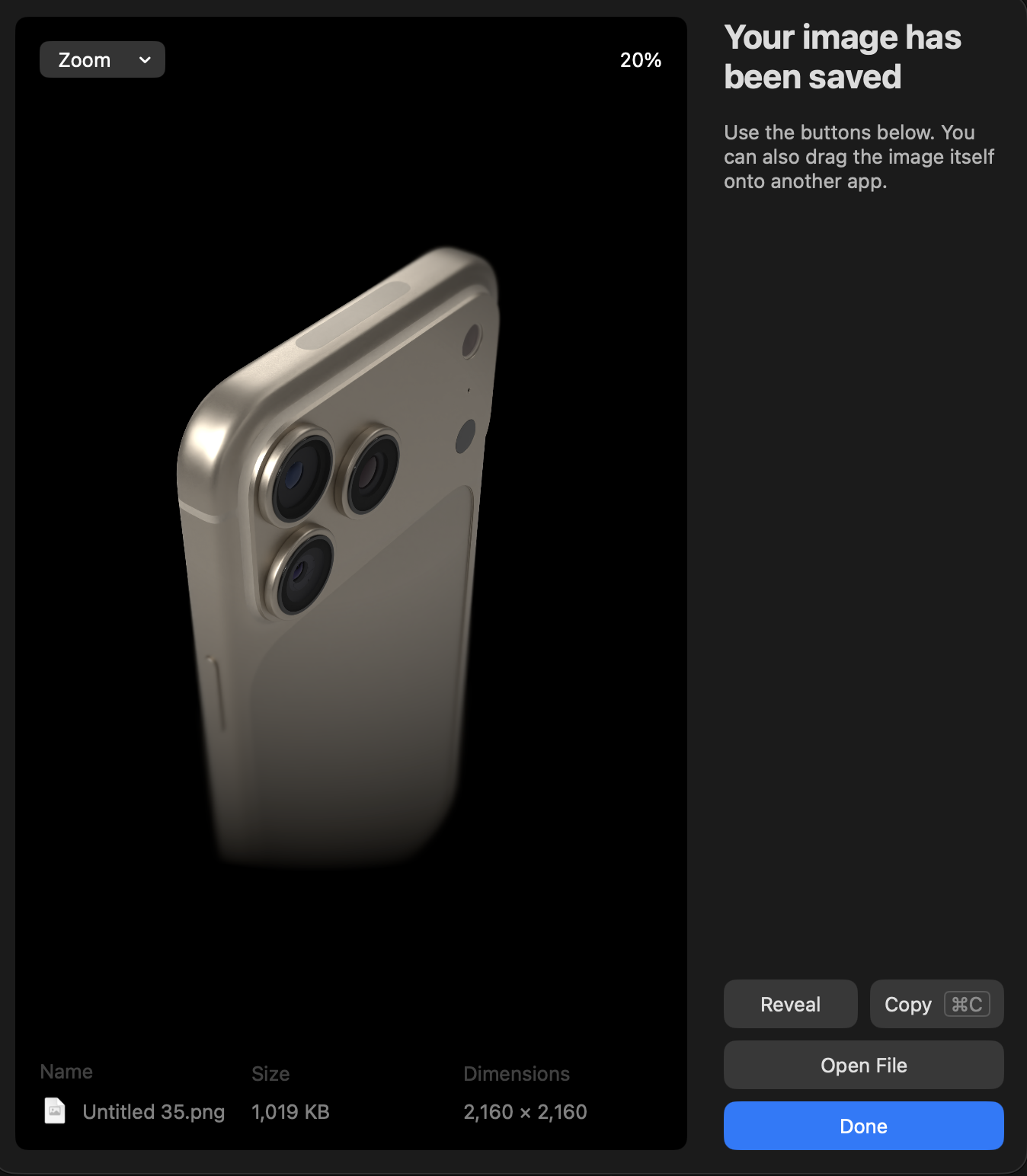
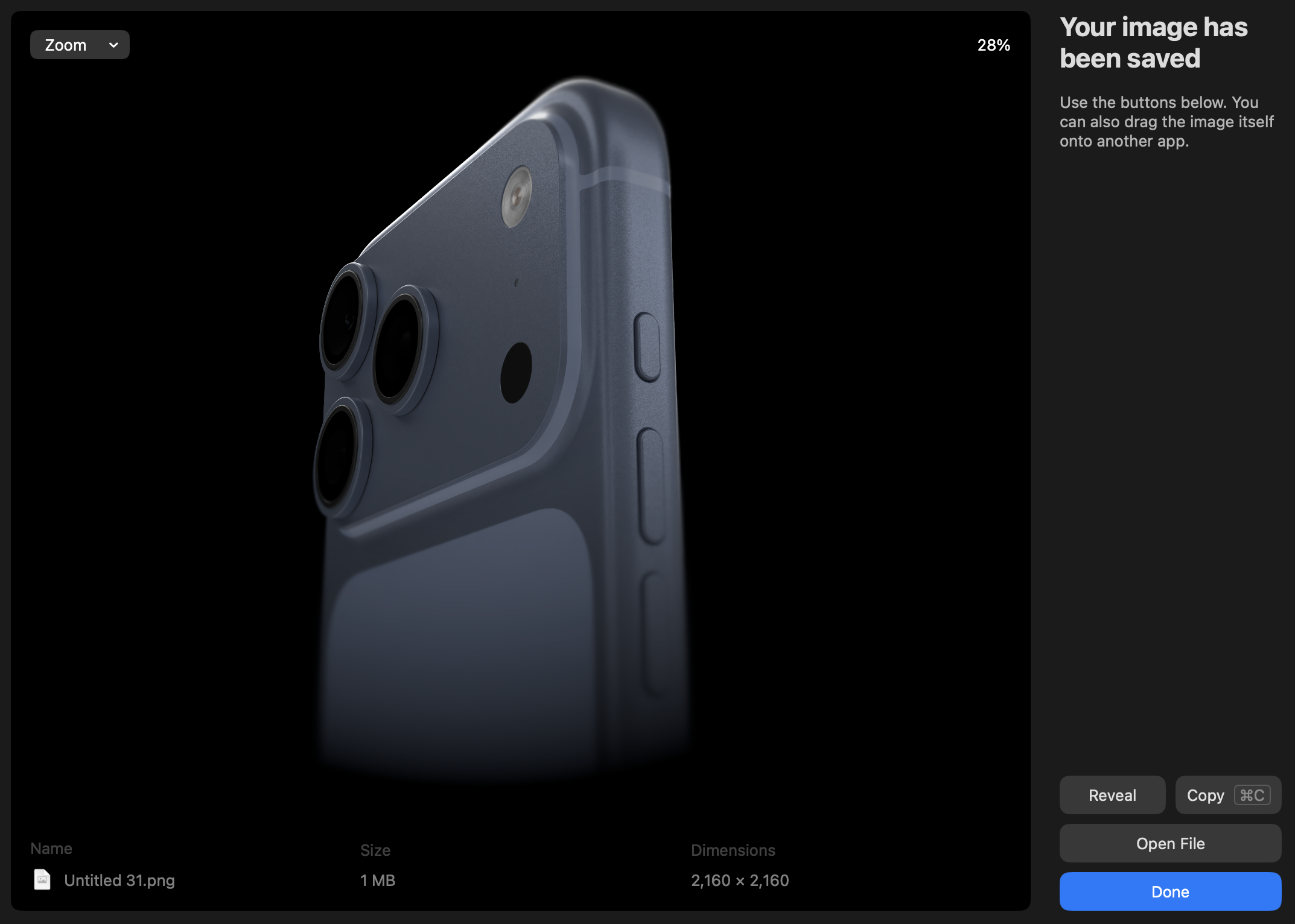
iPhone 18 Pro

iPhone 18 Pro Max

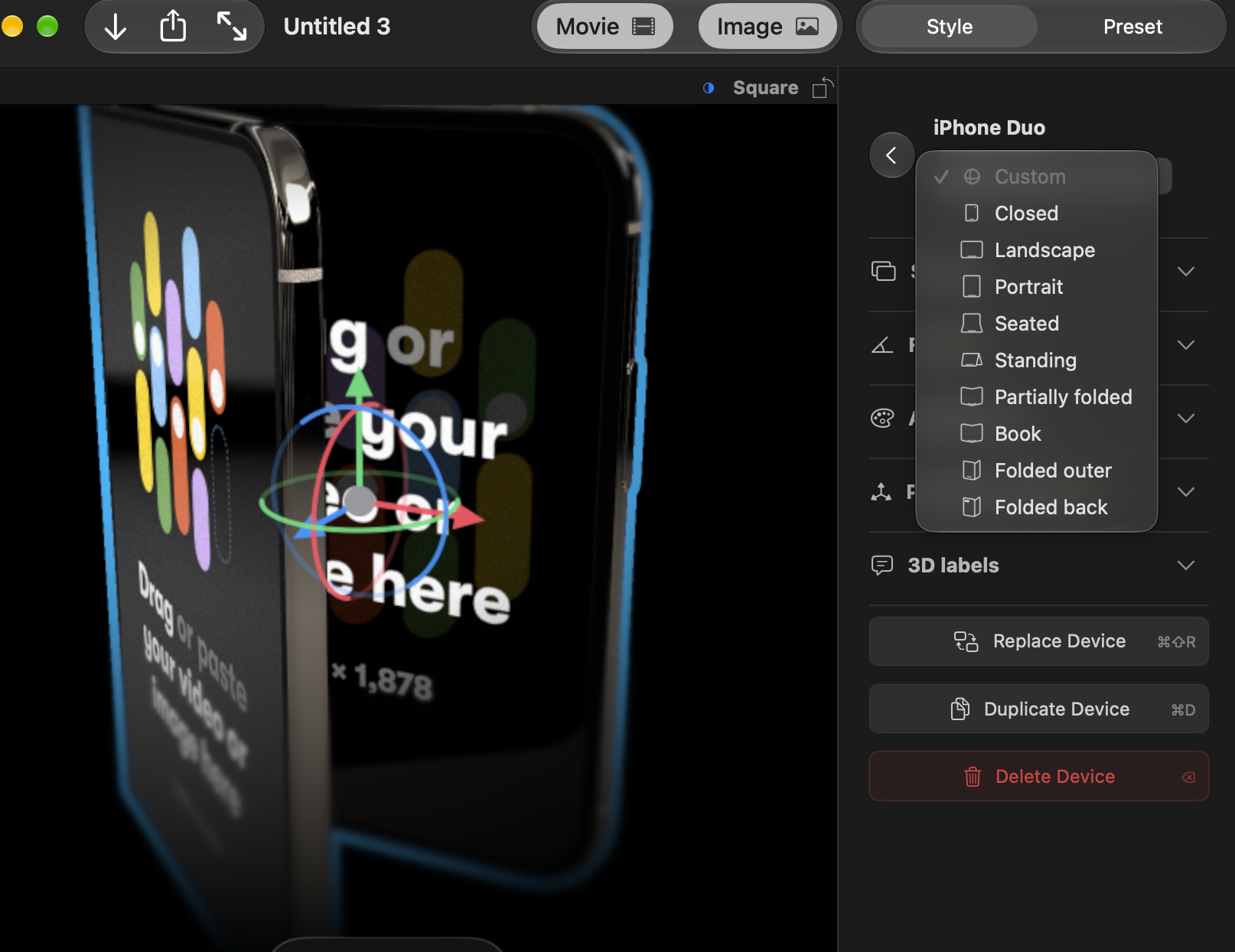
iPhone Duo

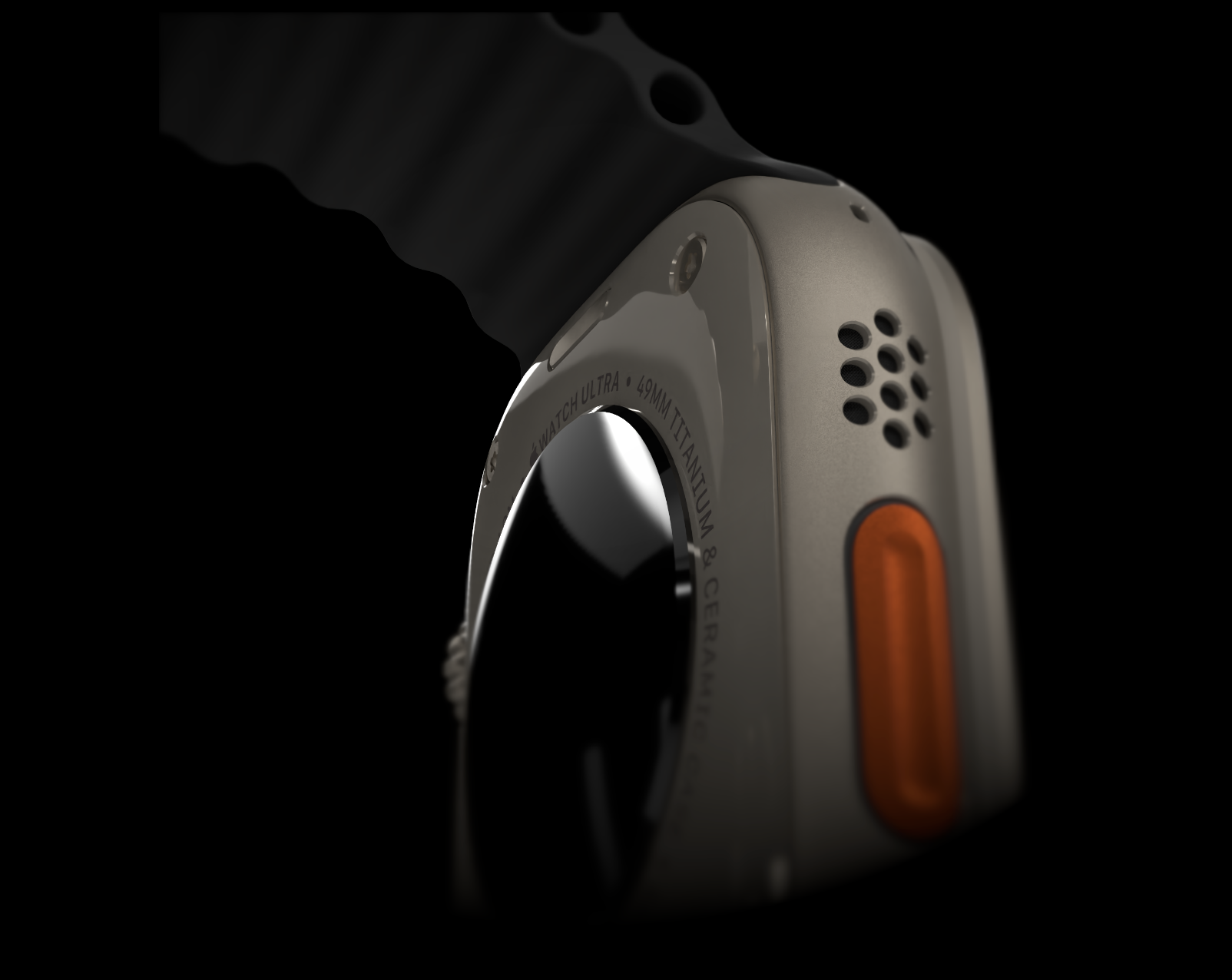
Apple Watch Ultra 3

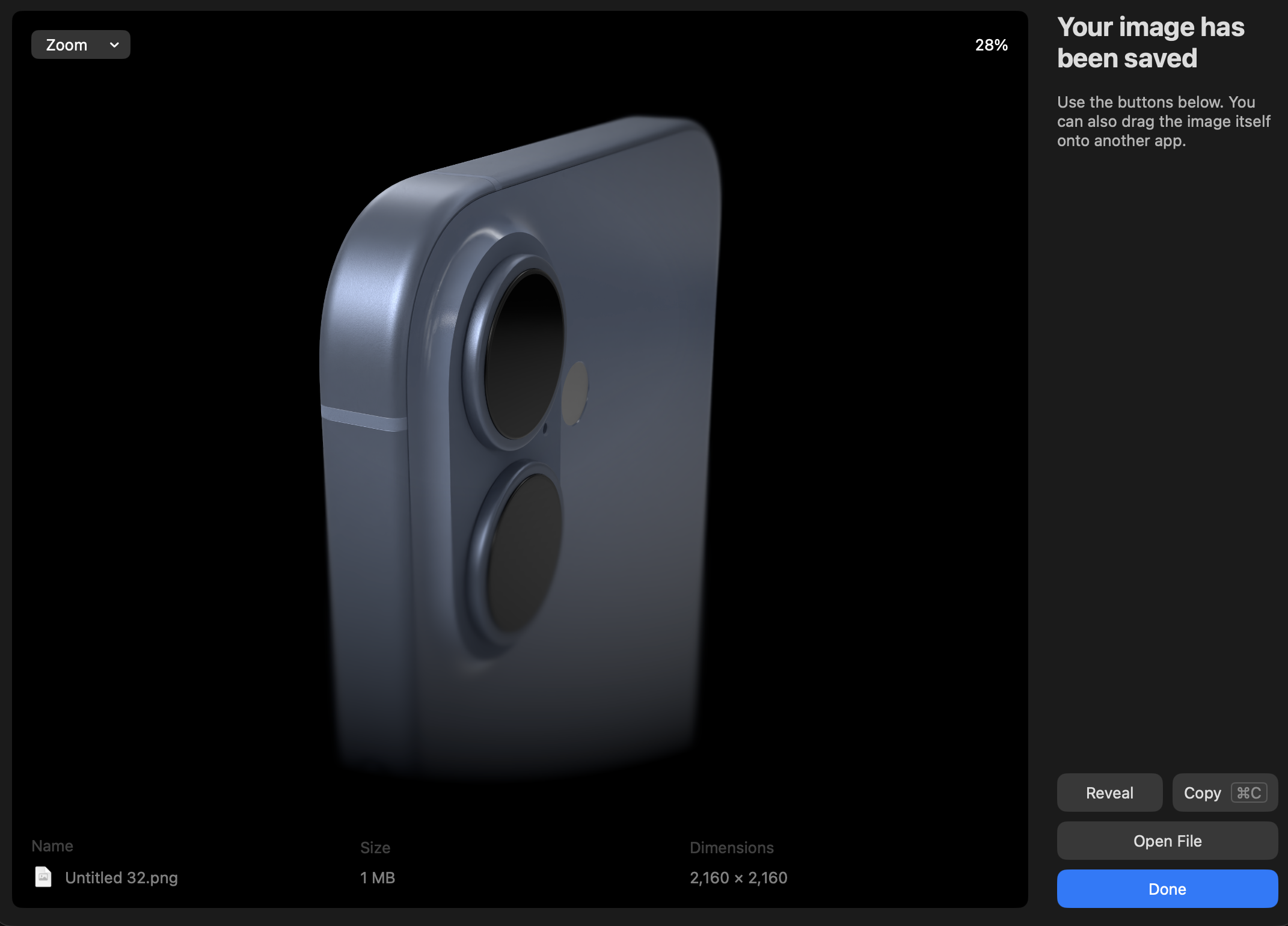
iPhone 17

iPhone 17 Pro

iPhone Air

MacBook Neo

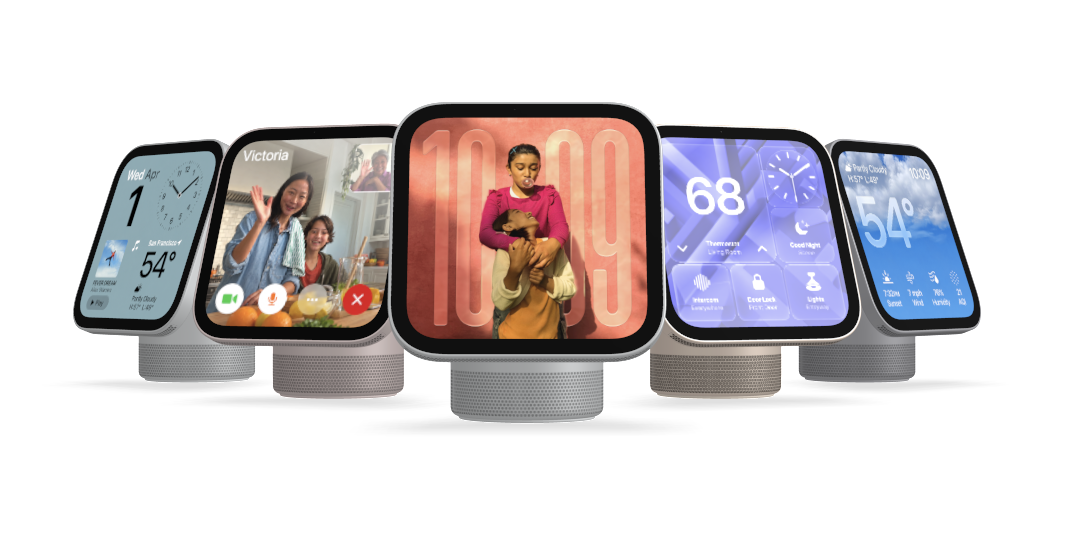
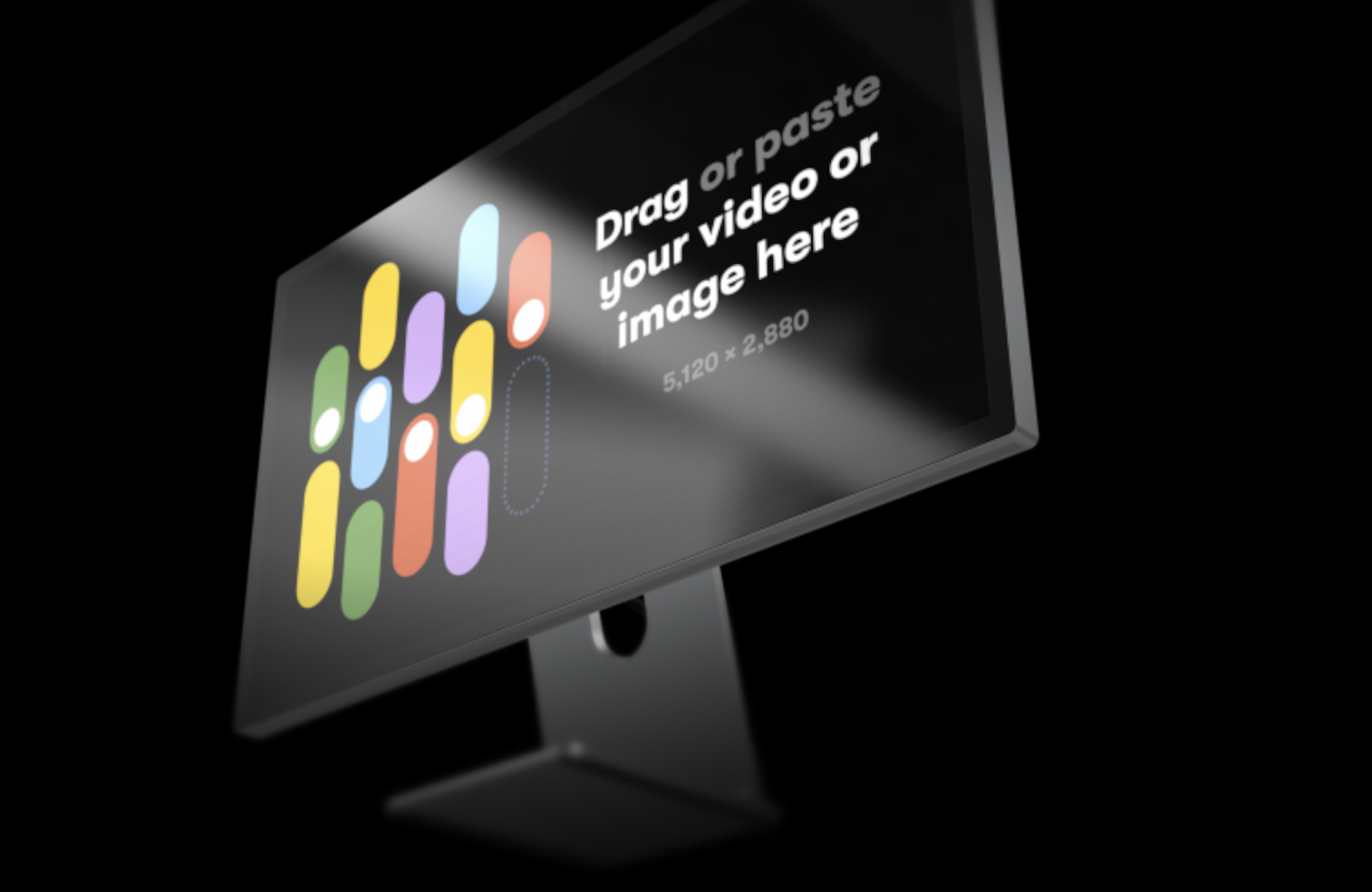
Studio Display

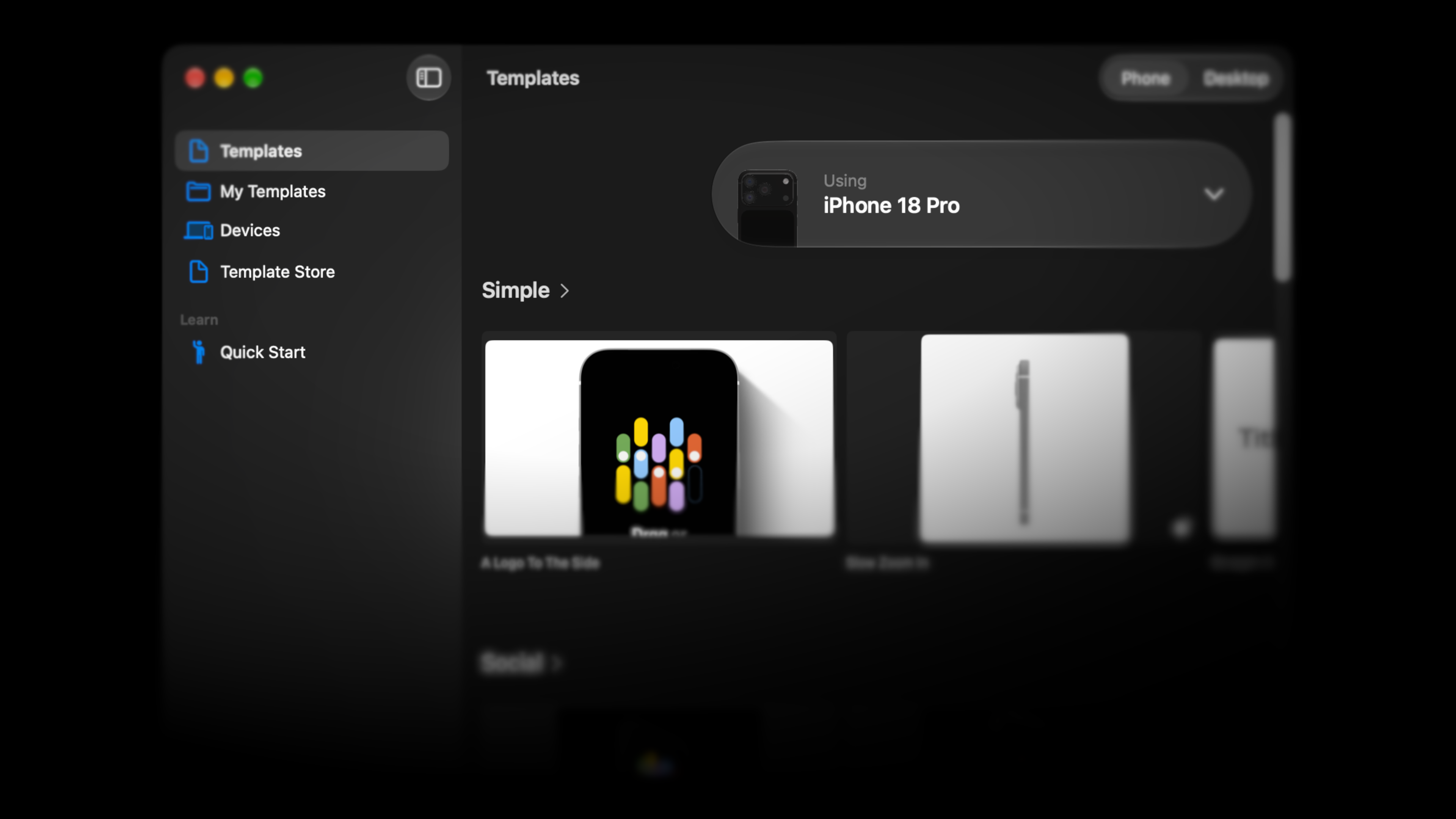
Templates with any device
You can now use the in-app templates with any device, defaulting to the latest. You can also find new templates with 2D labels and logos on the scene.

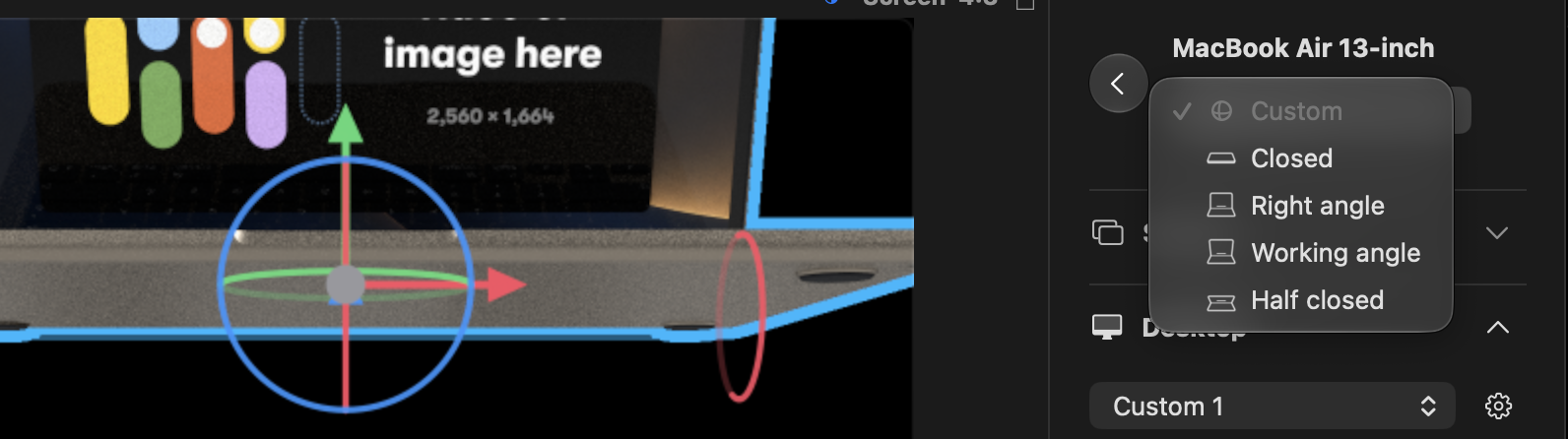
Device poses
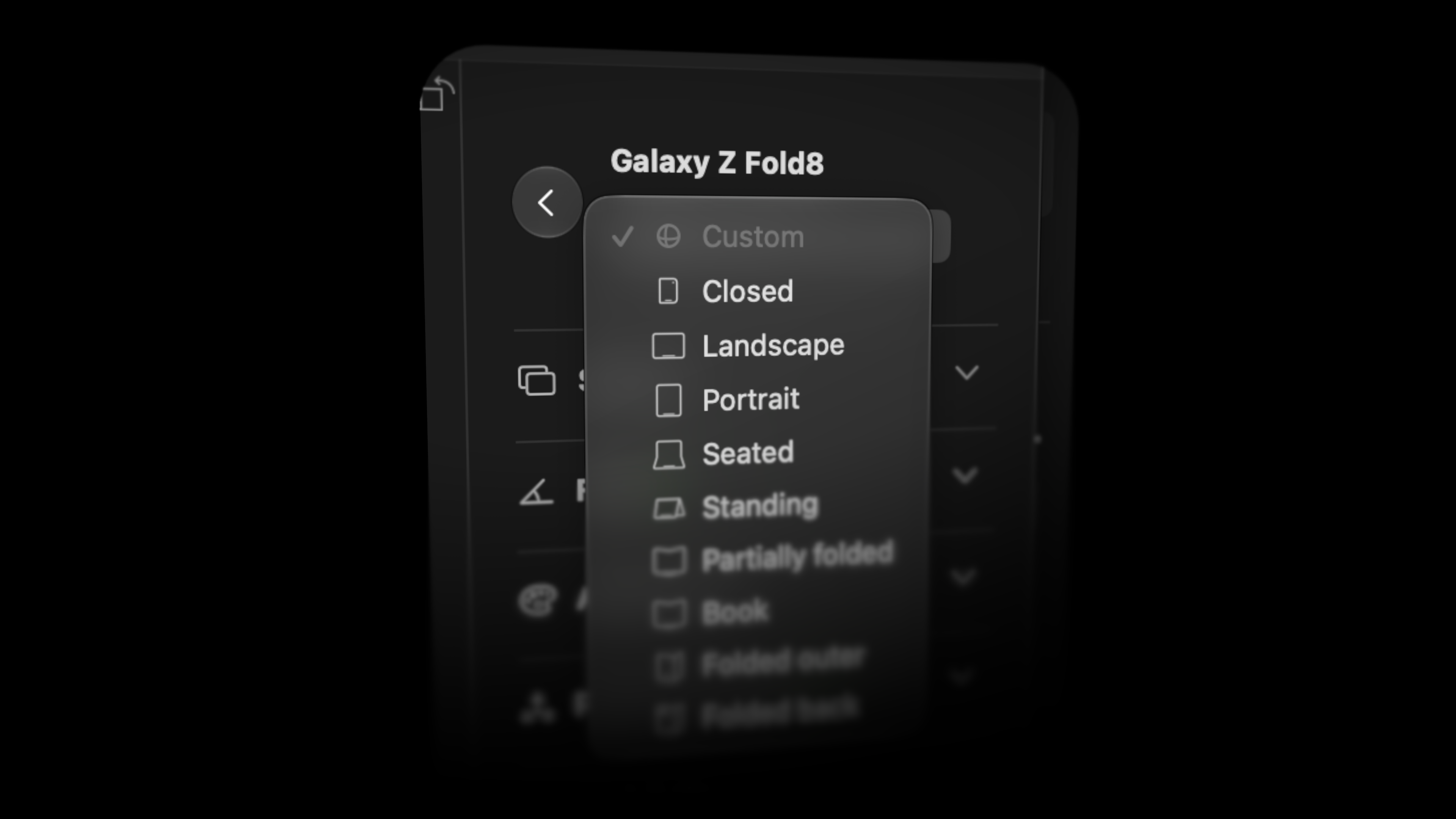
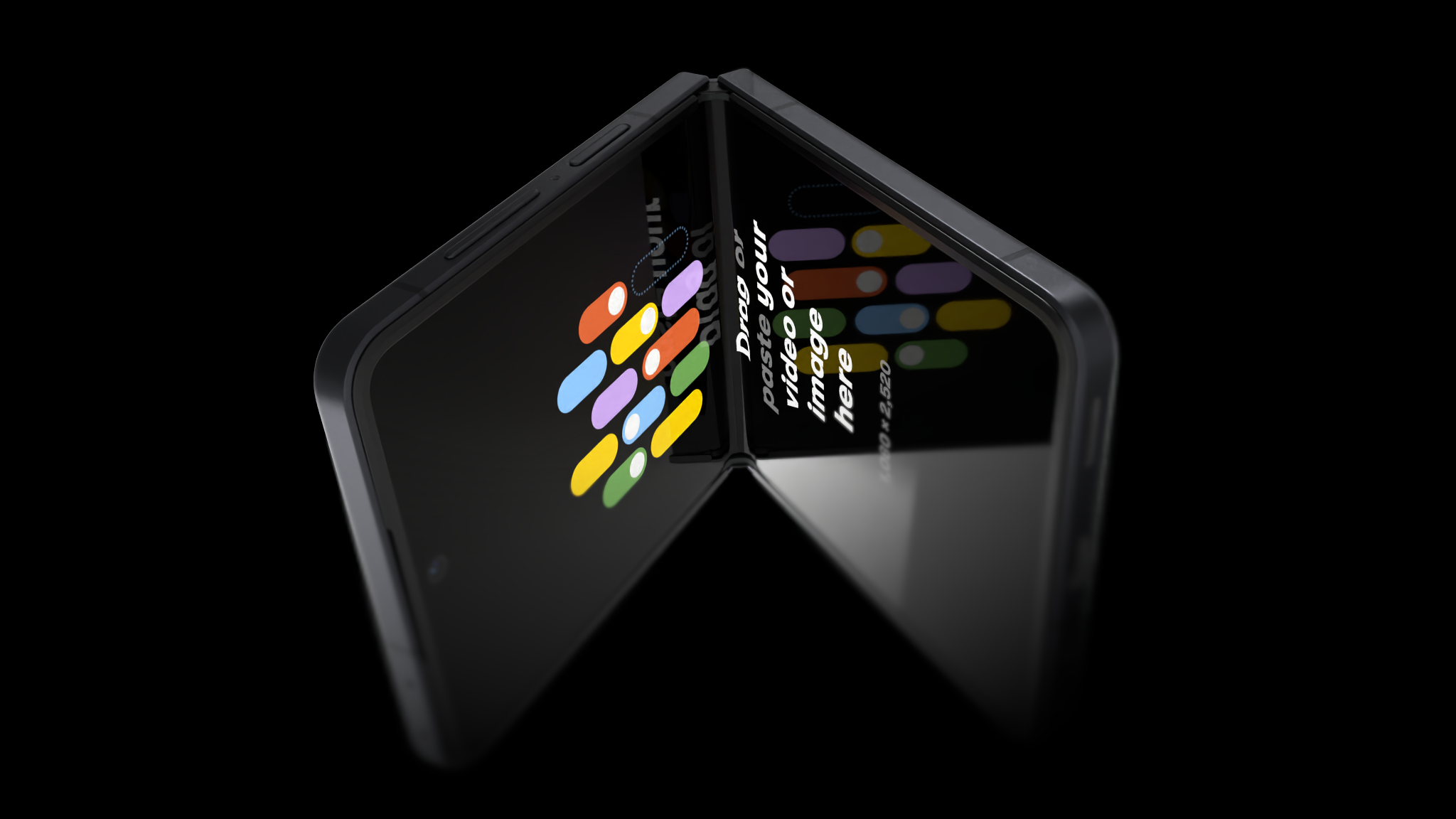
You can now choose and animate device poses for iPhone Duo and laptops, including folding poses for iPhone Duo.

Hold Option to duplicate
You can now duplicate a device by holding Option while dragging it, and move it across the canvas with the new center handle.
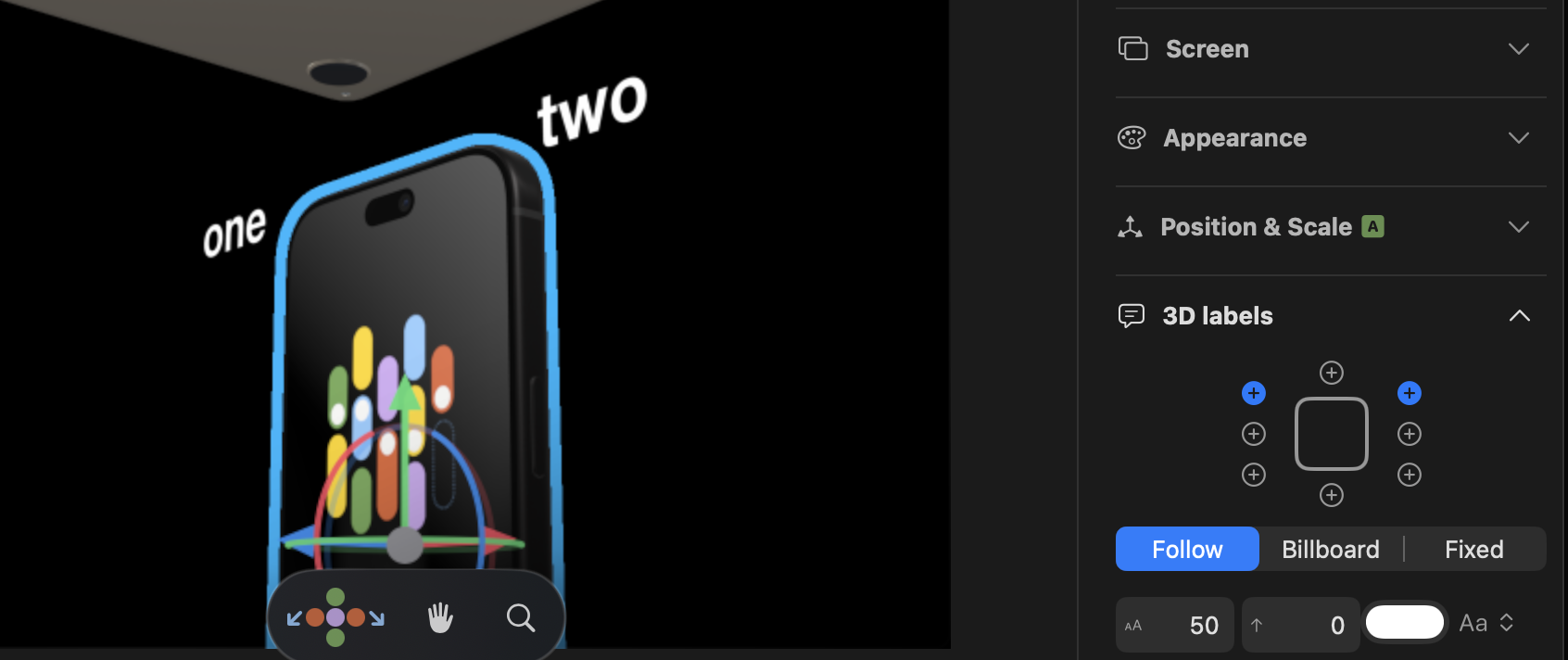
Device-specific 3D labels

You can now add 3D labels that belong to a device and stay with it when you replace the device.
You can also click on a label to edit it directly.
Environment images as backgrounds
You can now use environment images as both lighting and a 3D background.
Export WebP and AVIF
You can now export still images as WebP or AVIF.
Copy screen dimensions
You can now copy a device's screen dimensions from the sidebar as plain text, SVG, or a Figma Frame.
Improvements9
- Video screen exports are up to 4x faster
- Manual and Automatic keyframe modes make it clearer when editing a property changes an animation.
- You can also preview easing curves by hovering over them.
- The timeline has collapsible device tracks, property timing, snapping guides, and clearer selection. Zooming keeps the playhead in place.
- Device controls follow your selection, with separate color, clay, screen, and reflection controls. Apple Watch Ultra 3 has independent case and band colors.
- Shared shadows and custom shadow planes give you more control over multi-device scenes.
- My Templates shows previews of your saved scenes. Gallery templates show download progress and are grouped by tags.
- Get started with Quick Start tutorials, or keep a tutorial beside your work in Picture in Picture.
- Send a bug report or feature request from Help > Give Feedback.
Fixes1
- Hundreds of bug fixes and performance improvements.
Fixes and improvements
Fixes1
- Fixed a bug introduced with macOS 27 that involved moving the playhead.
Fixes and improvements
iPhone 17 Pro Max
iPhone 17 Pro Max is now available, with more iPhone 17 and iPhone Air models to follow.
macOS Tahoe app icon
Rotato has a new app icon for macOS Tahoe.
Improvements2
- When you hit Enter inside an inspector field, Rotato now unfocuses that field so you can use your arrow keys to nudge the camera.
- Lots of macOS Tahoe design adaptations, bug fixes, optimizations, and improvements.
Fixes and improvements
Apple device family
A new scene puts the Apple device family together: MacBook, iPad, iPhone, and Apple Watch.
Samsung Galaxy S25 Plus
Samsung Galaxy S25 Plus is now available.
Updated tutorials
We updated the tutorials on focus blur, landscape mode, labels, and picking a scene.
Improvements6
- The device category is now All when you open the splash screen, no matter which category you had selected in a previous session.
- The focus blur drag field (under the numeric input) is now more sensitive, so you can adjust with more precision.
- Searching for a device in the splash screen now automatically switches to the All tab.
- The Camera section of the sidebar is now the top section.
- The precise camera controls are modernized. Many people didn't find the old ones, so they now live in the Camera section of the sidebar with the other camera settings.
- Known issue: the rotation controls have moved from the floating widget to the Camera section in the sidebar. This is not ideal, but it's a consequence of a change in macOS 15 that we are investigating with Apple.
Fixes8
- Fixed a bug where the focus blur strength and distance could not be animated in some cases.
- Fixed zoom issues on some in-app templates for App Store images.
- Fixed a bug where label alignment in some cases would not be applied until you edited the label.
- Fixed a bug where background image fit mode, blur, saturation, and scale would not be saved and restored to .rotato files for some users.
- Fixed watermark issues affecting a small number of users using saved documents with some older device mockups.
- Fixed a bug where inputting numbers into the camera input fields would not update the animation in some cases.
- Fixed a bug where the camera input fields would not update after moving the timeline playhead.
- Fixed a bug where inputting numbers into the camera input fields would not be reflected in the camera position or rotation in some cases.
Fixes and improvements
Precise camera controls in the sidebar
The precise camera controls are modernized. Many people didn't find the old ones, so they now live in the Camera section of the sidebar with the other camera settings. The Camera section is also now the top section of the sidebar.
Known issue: the rotation controls have moved from the floating widget to the Camera section in the sidebar. This is not ideal, but it's a consequence of a change in macOS 15 that we are investigating with Apple.
Fixes7
- Fixed zoom issues on some in-app templates for App Store images.
- Fixed a bug where label alignment in some cases would not be applied until you edited the label.
- Fixed a bug where background image fit mode, blur, saturation, and scale would not be saved and restored to .rotato files for some users.
- Fixed watermark issues affecting a small number of users using saved documents with some older device mockups.
- Fixed a bug where inputting numbers into the camera input fields would not update the animation in some cases.
- Fixed a bug where the camera input fields would not update after moving the timeline playhead.
- Fixed a bug where inputting numbers into the camera input fields would not be reflected in the camera position or rotation in some cases.
Fixes and improvements
Set screen contents from the sidebar
You can now set and change the screen contents of a device from the sidebar. You can still drag and drop, but in some of the new templates the device may not be visible.
Template store in the splash window
You can now visit our template store right from the splash window.
Fixes1
- Bug fixes and performance improvements.
Fixes and improvements
Samsung Galaxy S25
Samsung Galaxy S25 is now available.
Improvements1
- Updates to iPhone 16.
Fixes1
- Bug fixes and performance improvements.
Fixes and improvements
iPhone 16 lineup
iPhone 16, iPhone 16 Plus, iPhone 16 Pro, and iPhone 16 Pro Max are now available.
Improvements2
- The camera control widget in the middle of the lower screen is now more compact. The rotation widget has moved to the Camera section in the sidebar.
- Optimizations for macOS 15.
Fixes1
- Bug fixes and performance improvements.
Fixes and improvements
- You can now render a quick snapshot in the bottom of the sidebar and drag that image to any other app, like Figma, Slack, Keynote, PowerPoint, Notion and, you know, any other app.
- You can now tell an animation block to not animate and abruptly go from one state to the other. This is great if you want to teleport the camera to another position without seeing the devices move.
- You can now duplicate a device with ^+⌘+arrow keys. E.g. → to duplicate the device to the right of the device.
- You can now replace a device by clicking the icon in the Devices sidebar. Thanks for all the feedback about how you missed the Switch Scene button from the old versions.
- You can now move a selected device with the arrow keys. Hold shift to move half a device. Hold ⇧⌘ to move half the width or height of a device.
- You can now use math for device positions. Enter "4+4" in e.g. device x position to move it to 8 on the x axis. You can use
*,/,-and+. - In the device position fields you can now use
H,W, andDto move the device by its own height, width and depth. Useh,w, anddto add padding. You can combine this with math, e.g.w * 2.5andh/2. You can also use shortcuts:w2isw*2,wwisw/2. - In the device rotation, you can use
handqto rotate the device 180 and 90 degrees.
Improvements8
- You can now join the beta channel. Try new features and help make Rotato better!
- Figma: Exploded artboards now set the background color of the artboard on the device.
- Updates are now delivered faster.
- Important under the hood improvements to how we handle the contents on the device screen. For that reason, documents saved in this version will not be compatible with earlier versions.
- When you change a device's rotation or position using the numeric field in the sidebar, the scene updates on every keystroke, so you no longer have to press Enter.
- Memory and performance improvements for multi-device scenes.
- Undo/redo improved in several areas.
- Recent scenes and templates are now ordered by...recency.
Fixes5
- The option to save a document as a template is back in the Save dialog when you hit Save.
- Fixed a bug where selecting device A, then device B, then changing rotation by entering a number in the sidebar would change device A's rotation, despite device B being selected.
- Fixed a bug where Undo Move Device would move to the wrong position in some cases.
- Fixed a bug where Undo Delete Device could crash Rotato when reopening the project.
- Template description text was not readable in light mode (Thanks, Chris).
Fixes and improvements
- Added Apple Watch Ultra 2 mockup
- You can now see a real-time preview of your movie while rendering
Improvements1
- The Figma explosion levitation field now adjusts the value more gently
Fixes2
- Fixed a bug where the Figma plugin would hang in some cases if you had not explictly selected a scene in the plugin first
- Fixed a bug where Rotato would sometimes ignore when you clicked "Close" or "Reveal" on the confirmation dialog after having rendered a batch of 2 or more snapshots.