Making mockups from copied screenshots
Copy a screenshot, then drag its mockup into another app.
 By Morten Just
Copy a supported screenshot while Rotato is running, and a small preview with four mockups appears. Drag the view you want into your design app or Finder.
The four-view preview and first-use choice are available in Rotato 161 and later.
Pick a view
The preview offers four compositions, arranged from left to right:
- The top left tile shows the full device from the front.
- The top right tile shows a closer crop toward the top of the mockup.
- The bottom left tile shows a closer crop toward the bottom of the mockup.
- The bottom right tile shows an angled close-up around an area that draws attention in your screenshot.
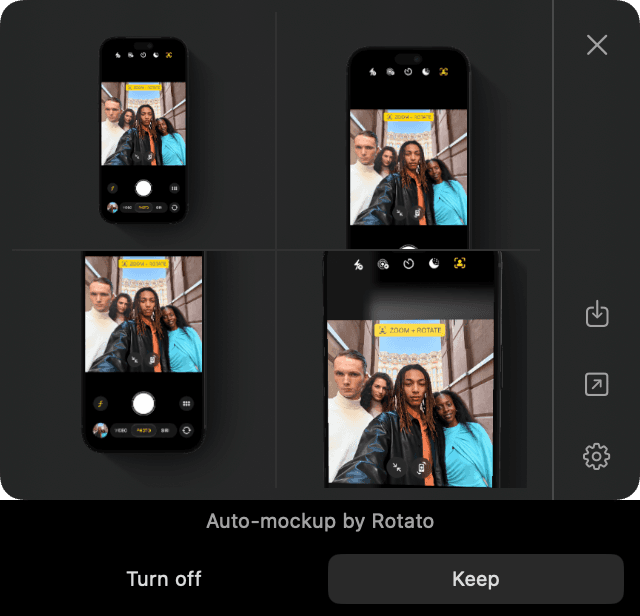
The close-up is chosen automatically. It may favor a face, a clock, or another prominent detail, and can crop part of the device out of the image.
Drag any tile to export that view at 1200 × 1200 pixels with a transparent background. Rotato provides PNG, TIFF, and file representations so the receiving app can choose a supported format. The small preview does not limit the exported resolution.
Move the pointer over a tile to select it for the Save button. Open Mockup opens the prepared scene in Rotato for further editing.
Copying a different supported screenshot replaces the current preview. Rotato skips repeated copies of the same image. Copy a different screenshot to get a new preview.
Choose whether to keep automatic mockups
The first preview offers two choices below the four views, as shown above:
- Keep keeps automatic mockups on for your selected screenshot categories and removes the first-use message.
- Turn off disables automatic mockups for both phone and laptop screenshots.
Rotato remembers your choice when you quit and reopen it. Closing the preview leaves the choice unanswered, so you can choose when another supported screenshot appears. Your original image stays on the clipboard.
Change your choice later
Open Rotato > Settings, then find Clipboard mockups. Turn Phone screenshots or Laptop screenshots on or off. You can also open Settings with the gear button beside a preview.
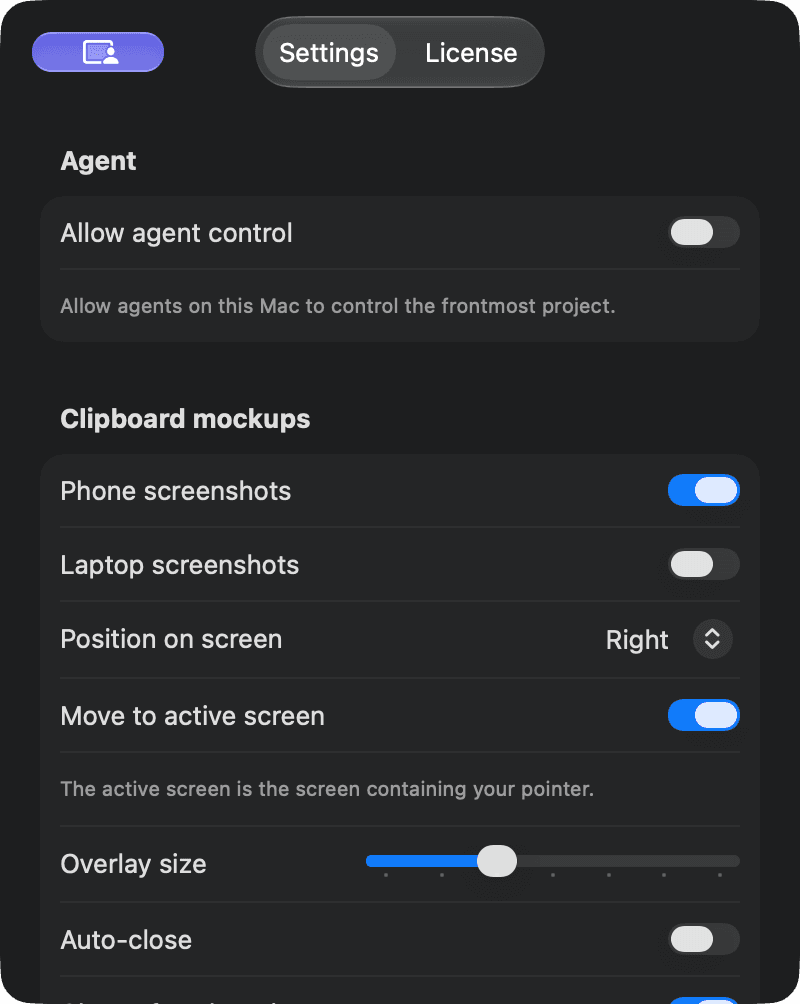
Phone screenshots are enabled by default. Laptop screenshots are off until you enable them. To stop automatic mockups, turn both screenshot switches off.
If a preview does not appear
Make sure Rotato is running and the matching screenshot category is enabled in Settings. Copy the image again after changing a setting. Clipboard mockups recognize supported device screen sizes, so an arbitrary photo may not trigger a preview. You need an active Rotato Pro license whose update access includes the mockup's device.